 Brightfox Support
Appearance
Activities
Activities Overview
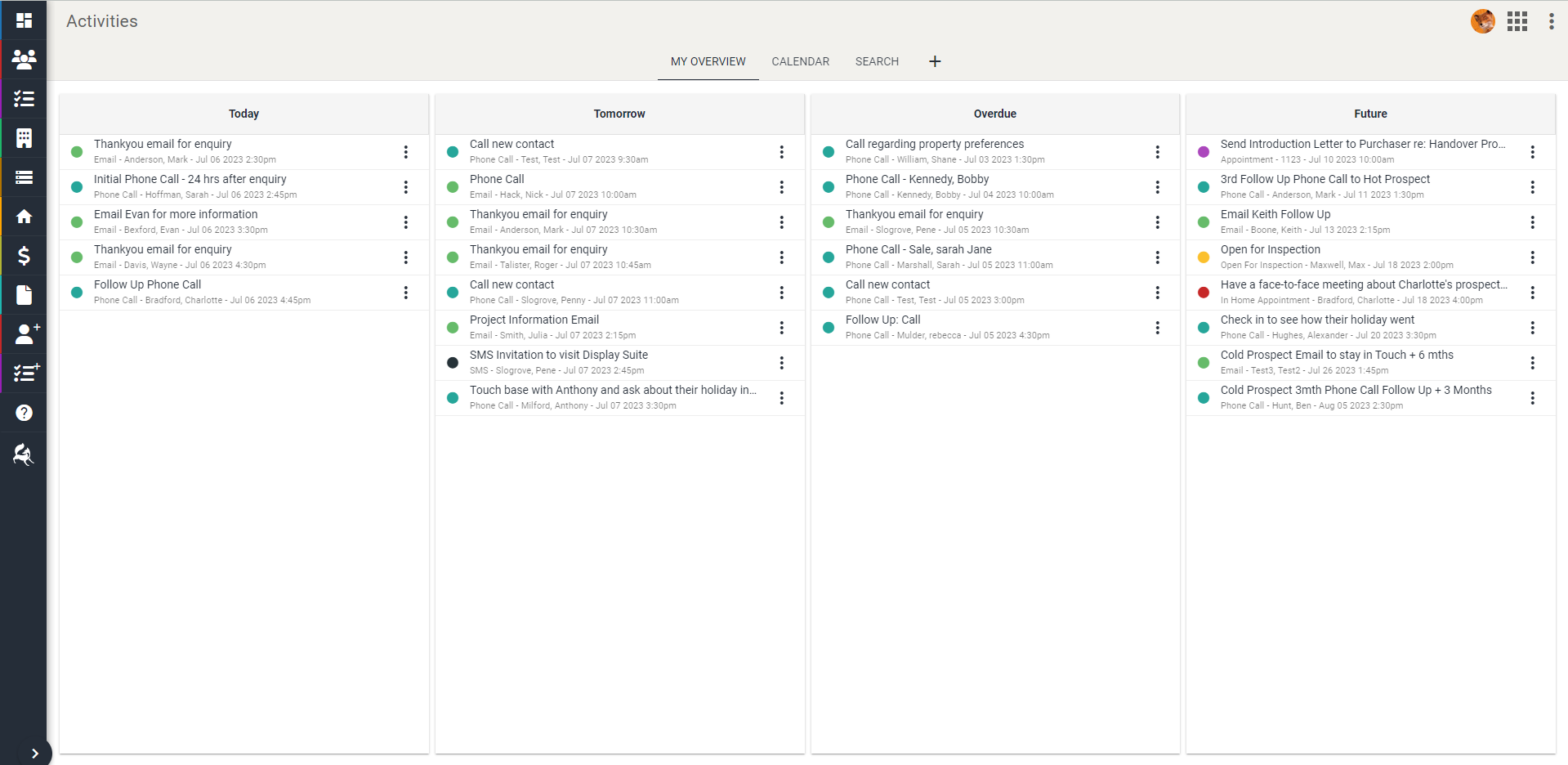
The activities overview allows for creation, editing, postponement and completion of activities, displayed in four columns to sort and organise scheduled activities.
- Today – Activities that are scheduled to be completed on the present day
- Tomorrow - Activities that are scheduled to be completed on the next day
- Overdue - Activities that have not been completed by their schedule due date
- Future - Activities that are scheduled to be completed in the next 2+ days
Add Activity
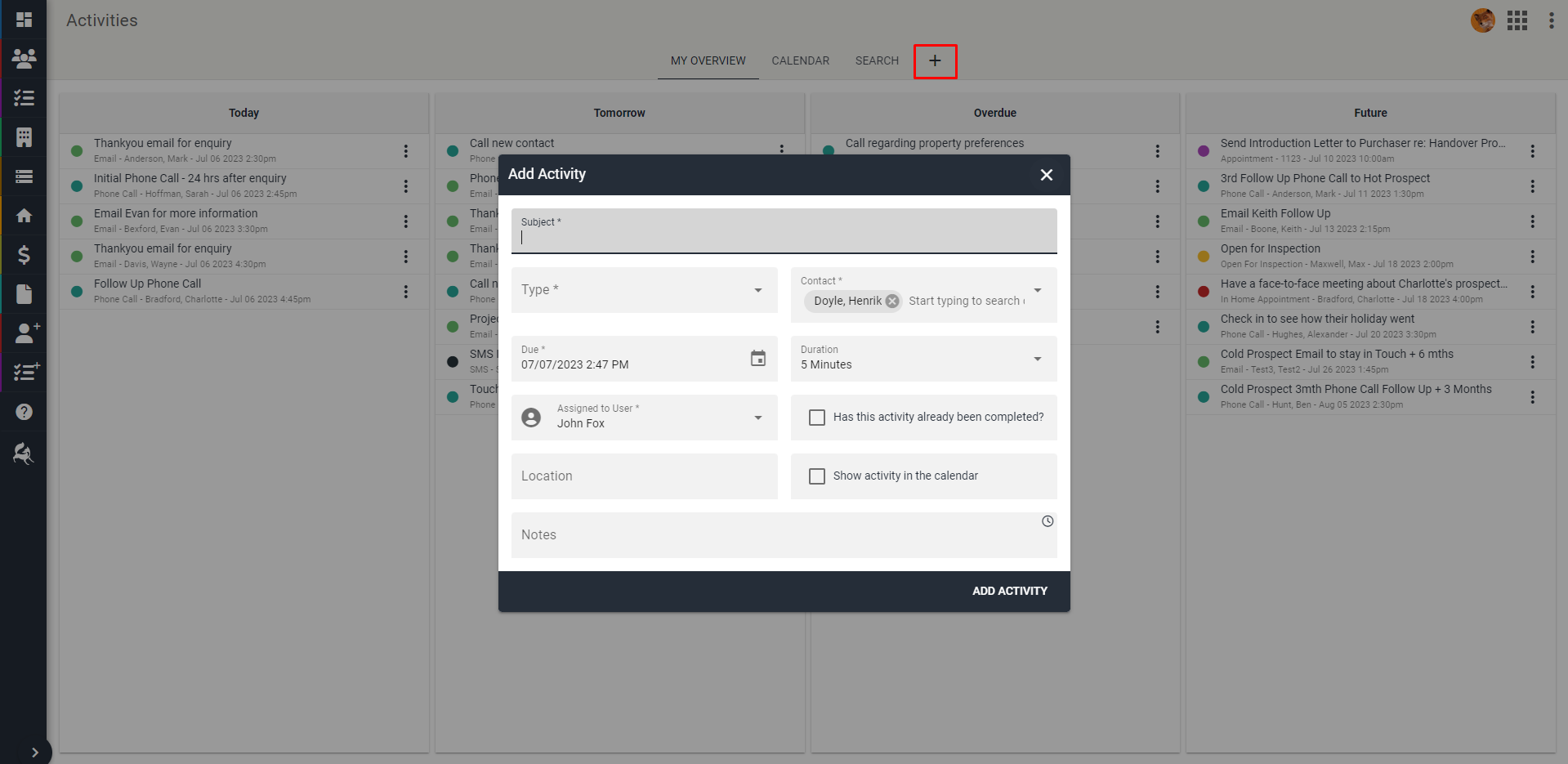 The fields with an asterisk * must be filled in to successfully create the activity.
- Subject – Title of the activity.
- Type – Category the activity falls under.
e.g. email, phone call, inspection - Contact – Person of focus of the activity. This must be a contact within the CRM.
- Due – A date and time for when the activity is scheduled to be completed.
- Duration – How long the activity will take to complete.
e.g. 5 Minutes, 1 hour, custom: 1 week. - Assigned to User – Who is responsible to complete the activity.
The user signed in will be automatically selected as the user the activity is assigned to. To change this, edit Assigned to User and choose the desired user to assign the activity. Refer to the Transfer Activity section below for more information. - Has this activity been completed? – If the activity has already been finished, check this box.
- Location – Where the activity takes place
e.g. Gold Coast, contact’s house. - Show activity in calendar – Must be checked for activity to appear in calendar view.
- Notes – Extra comments for the activity.
Transfer Activity
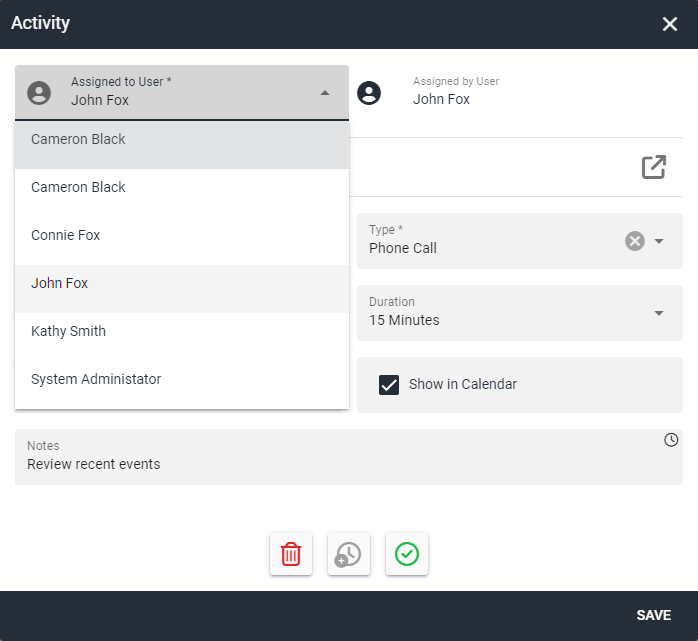
- To transfer an activity to another user, click on the Assigned to User option. This appears both when adding and editing an activity.
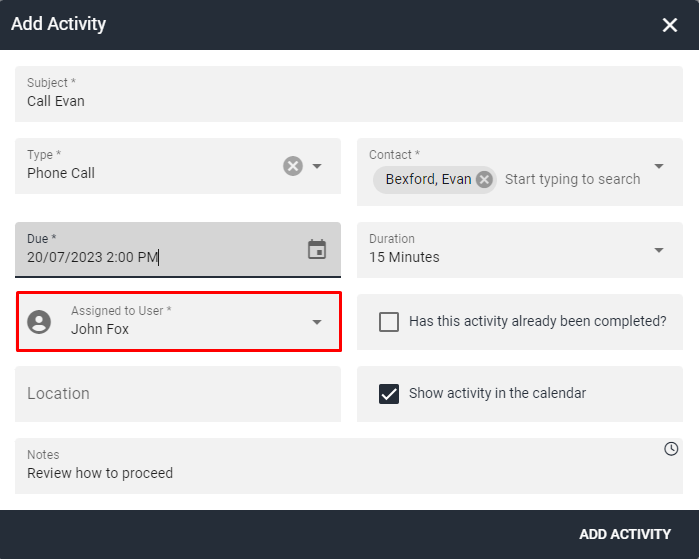
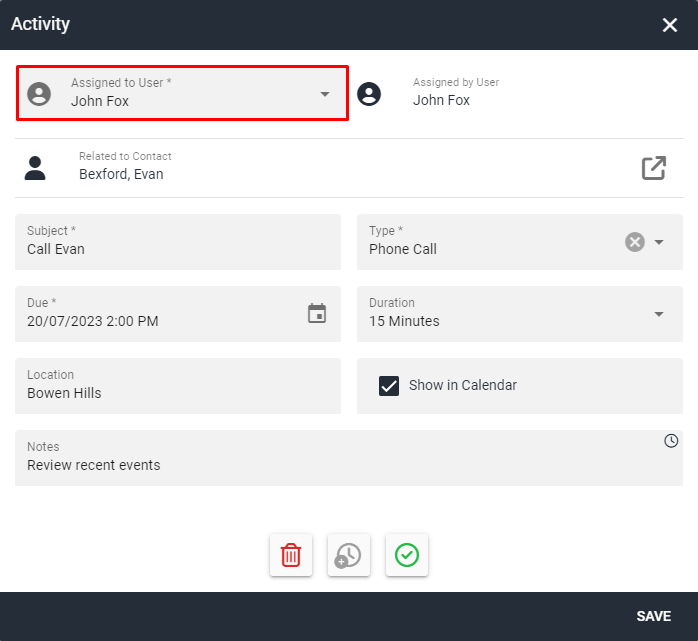
- Choose from the drop down list which user to assign the activity.
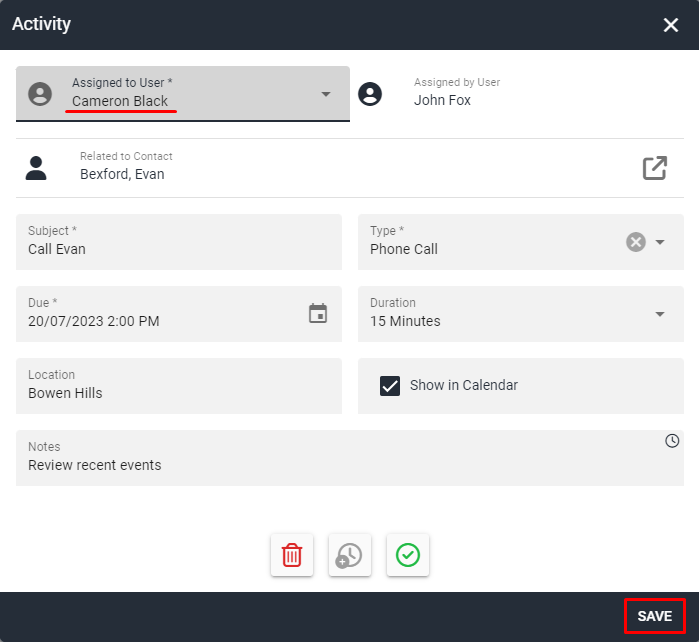
- Remember to click Save after changing the assigned user.
WARNING
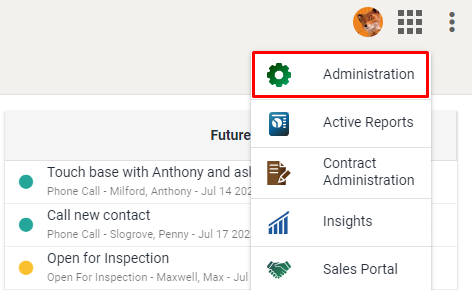
If no users appear in the drop down, Transfer Activity permissions must be adjusted in the Fox Admin module. To navigate to here from within Sales CRM, click the Menu Grid in top right corner and select Administration.
If Administration access is not available, contact an admin role user to add Transfer Activity permissions. See Transfer Activity Permissions in Security Roles for further steps.
Edit Activity
- Locate or use the search function (located in the top-centre) to find the activity you want to edit.
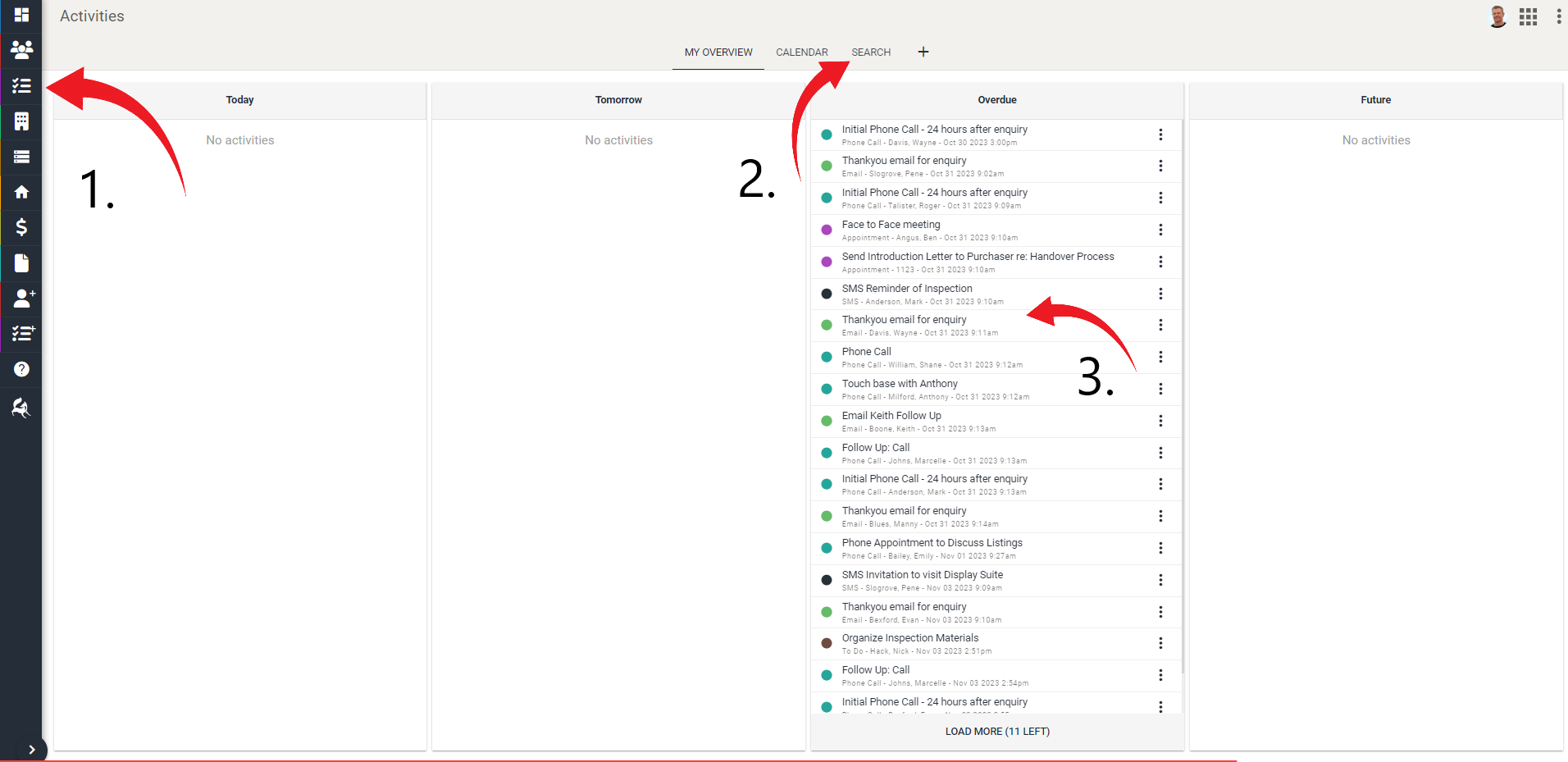
- Click on the activity you need to edit and a dialog will open with all the current information.
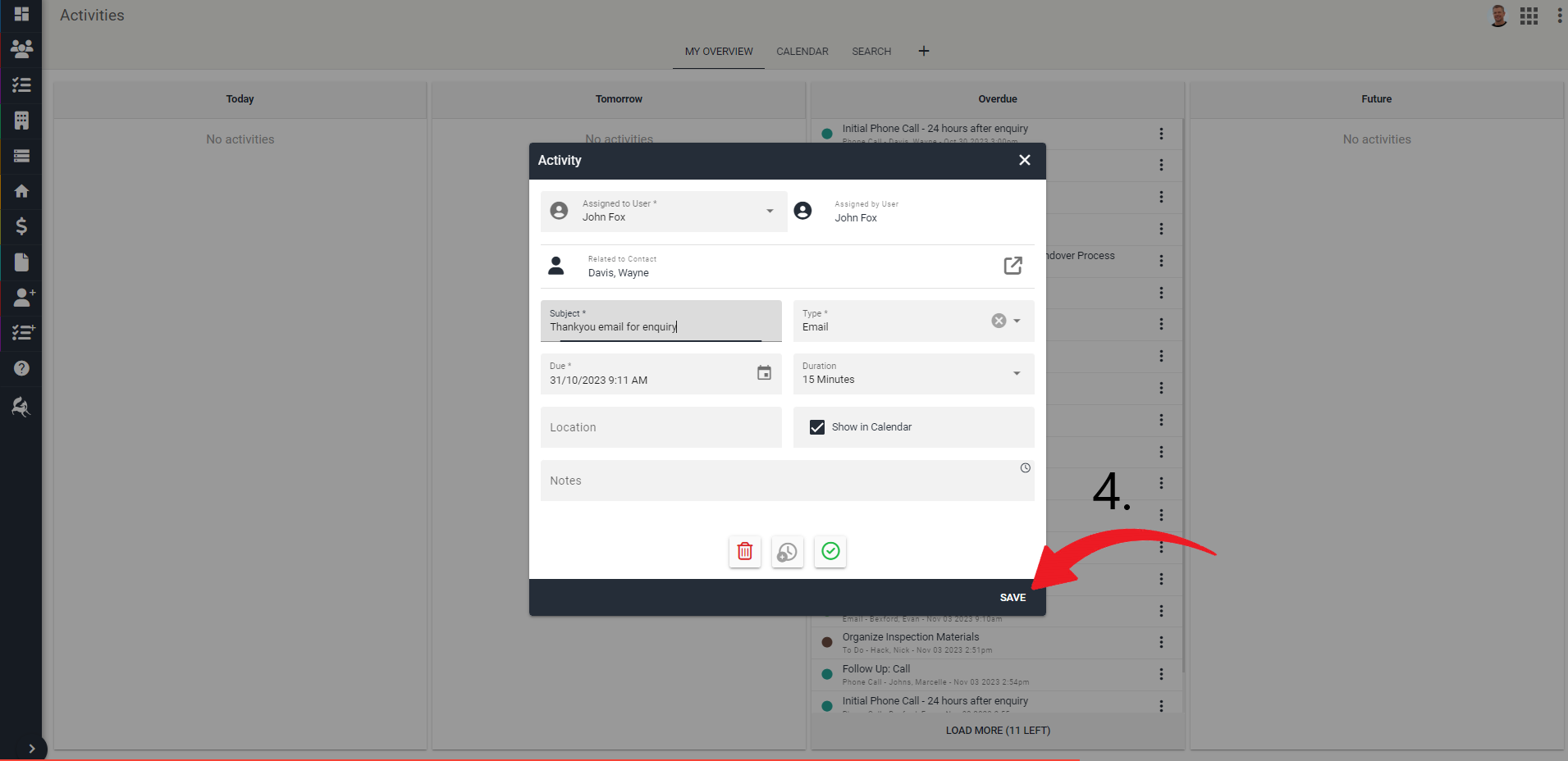
- Edit the information as required.
- Click Save.
Postpone Activity
You can postpone an activity the following ways.
In Activities Overview
- Select the three dots ⋮ to open actions.
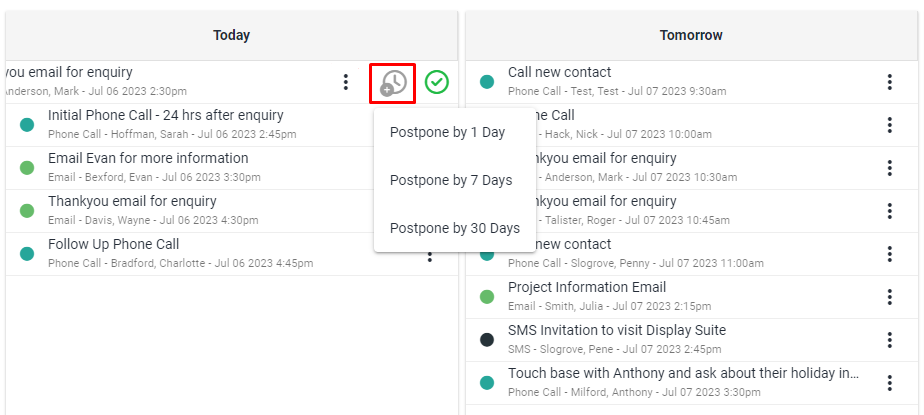
Postponing an activity will move the activity forward from the current day and time, not from the due date of the activity.
- Select the Grey Clock Icon and choose from these automated options.
INFO
- Postpone by 1 Day – Activity will be moved 24 hours from present time.
- Postpone by 7 Days – Activity will be moved 7 days from present time.
- Postpone by 30 Days – Activity will be moved 30 days from present time.
In Edit Activity
Select the activity you wish to edit, opening the Activity dialogue.
Either:
- Edit the Due date and time as needed.
- Alternatively, click the Grey Clock Icon at the bottom of this dialogue to reveal the automated options detailed above.
- Click Save.
Complete Activity
You can complete an activity the following ways.
In Activities Overview
- Select the three dots ⋮ to open actions.
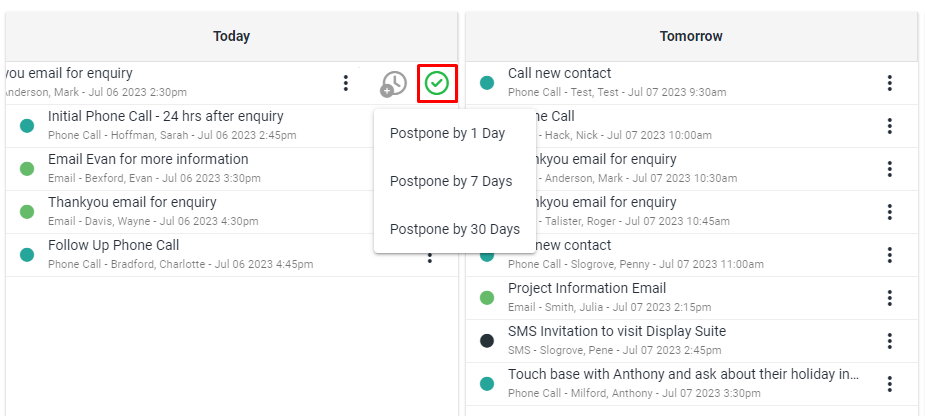
- Click the Circled Green Checkmark as seen above.
TIP
If an activity has been completed by accident use the Search tab and or Filters to find the activity and revert these changes as needed.
In Edit Activity
Select the activity you wish to edit, opening the Activity dialogue.
Click the Circled Green Checkmark at the bottom of this dialogue.
Click Save.
Activities Calendar
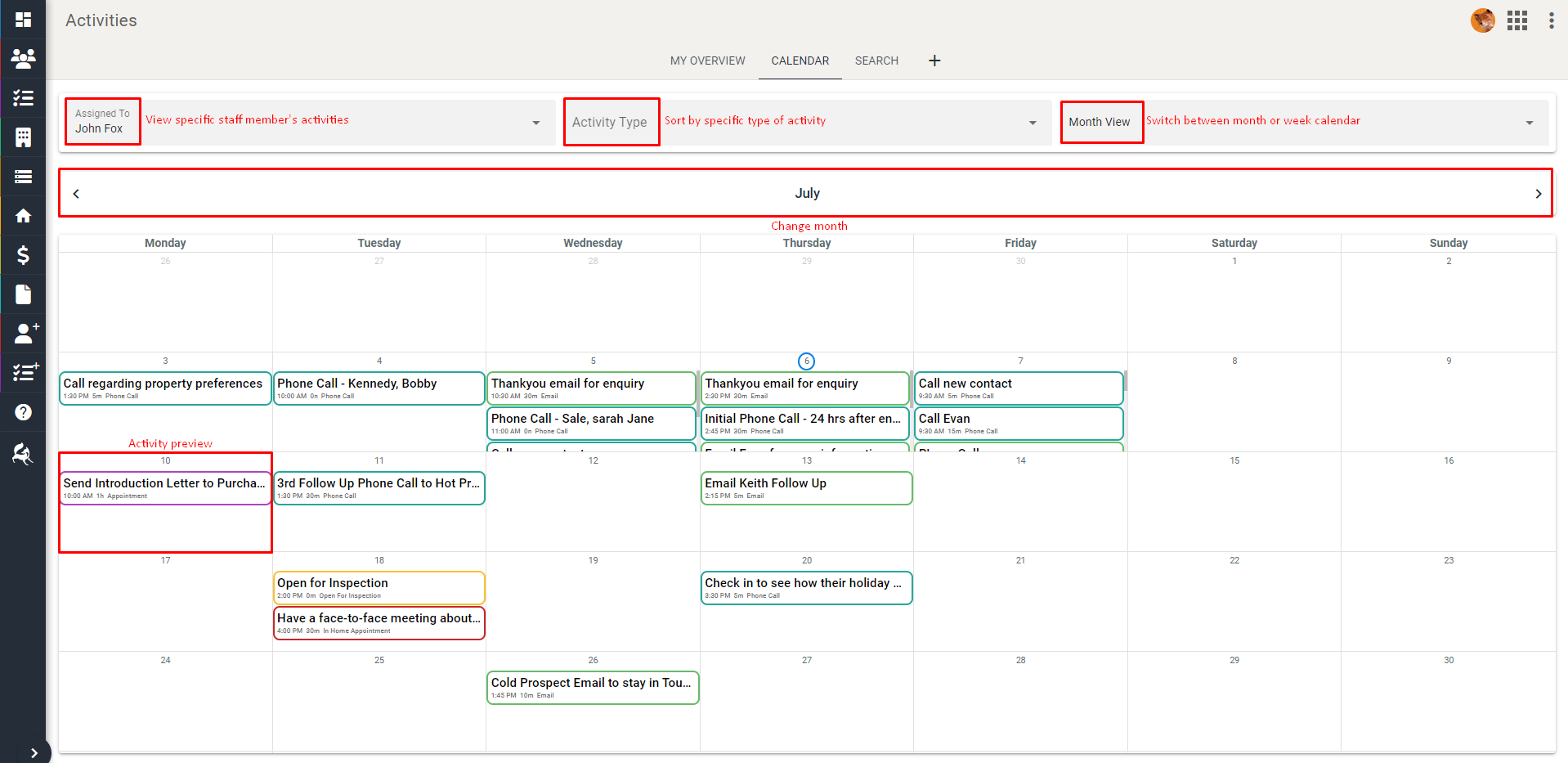
The Activities Calendar features a variety of ways to visualize the activities scheduled.
Features include:
- Assign To Filter
Filter activities based on which staff member was given responsibility. - Activity Type Filter
Filter based on activity category. - Month View
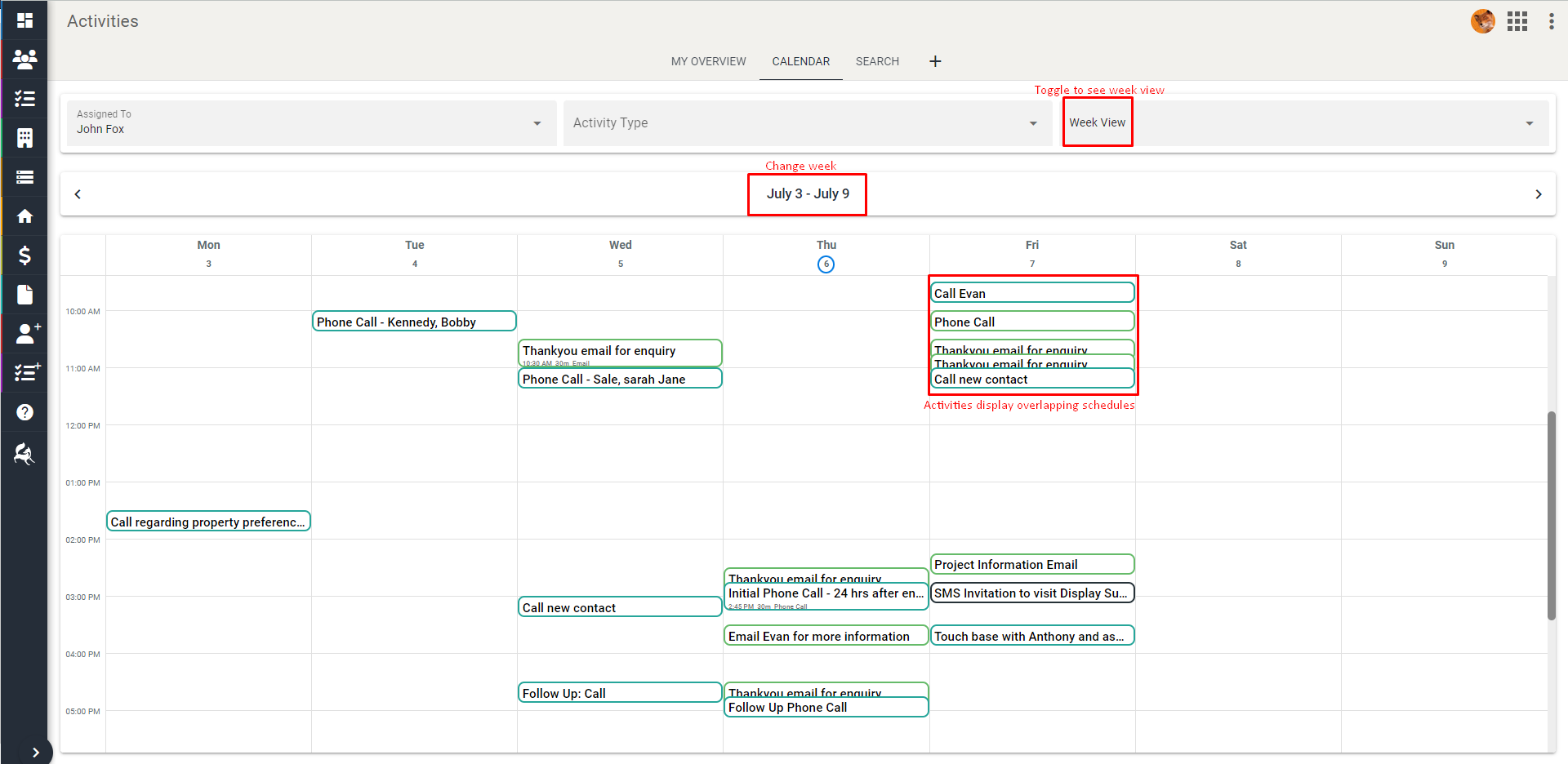
View scheduled activities for the month (as seen above). - Week View
View scheduled activities for the week (as seen below). - Change Month/Week
View scheduled activities from previous weeks that are overdue or scheduled activities from future weeks which have yet to be started. - Hover Preview
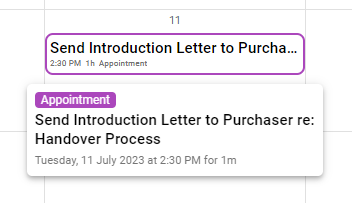
Hover over an activity to see more details.
The Week View displays activities by the hour. This is a great way to visualise activities that overlap or conflict with each other.
An Activity Preview allows for ease-of-use to learn more details about an activity without having to open an activity window. Simply move the cursor over an activity and the preview will hover above or below with more details.
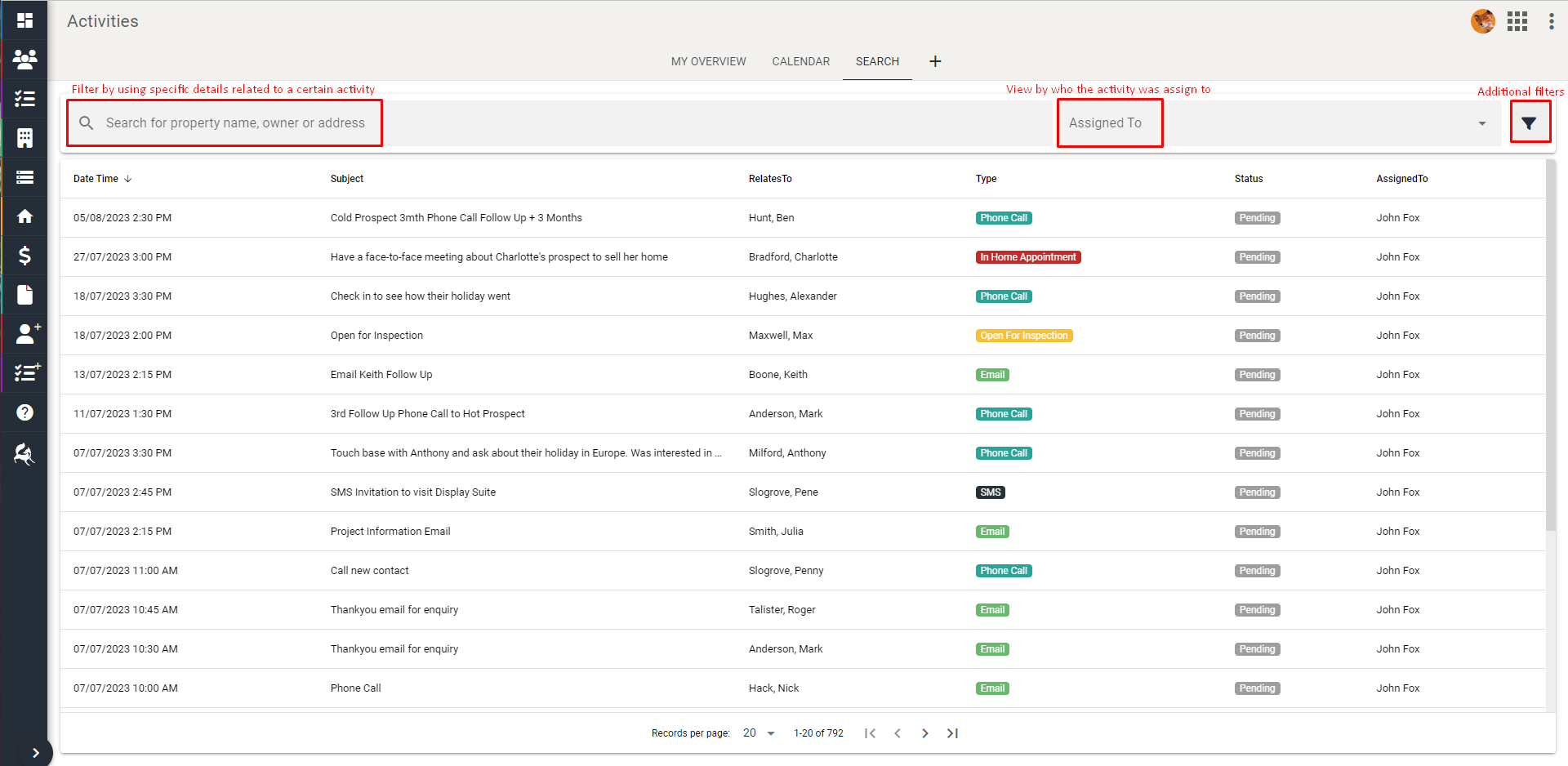
The Search function allows for a variety of sorting and filtering functions to be combined to narrow down your search for certain activities.
Search Field Filter
Filter activities based on a specific name, address, contact, or subject.
Assigned To Filter
Filter activities based on which staff member was given responsibility.
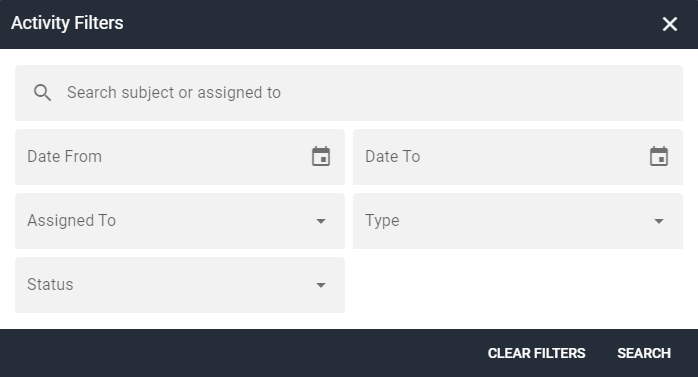
Activity Filters
A pop-up window (as seen below) that allows for more filter options such as:
- Search Field
- Date
- Assigned To
- Activity Type
- Completion Status
TIP
- Use multiple activity filters to easily find a certain activity or group of activities.
- The Sort By functionality is available via Date/Time, Subject, Activity Type and Assigned To.
- Click through to get ascending, descending and off.