 Brightfox Support
Appearance
Contracts
Add a Contract
Open the Contract Administrator module.
Click on the + icon in the top right corner of the screen.
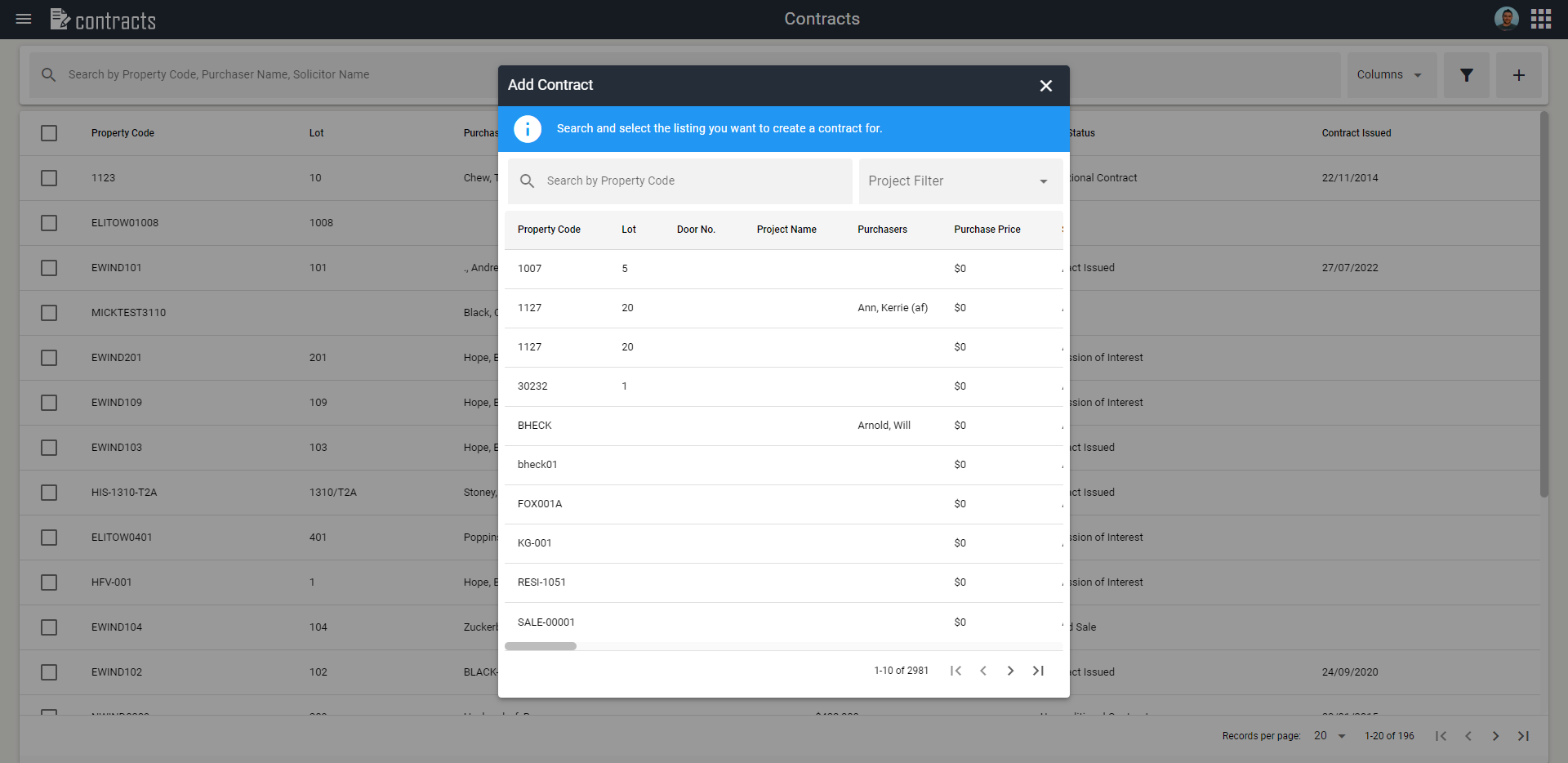
Search for the listing you want to add a contract to.
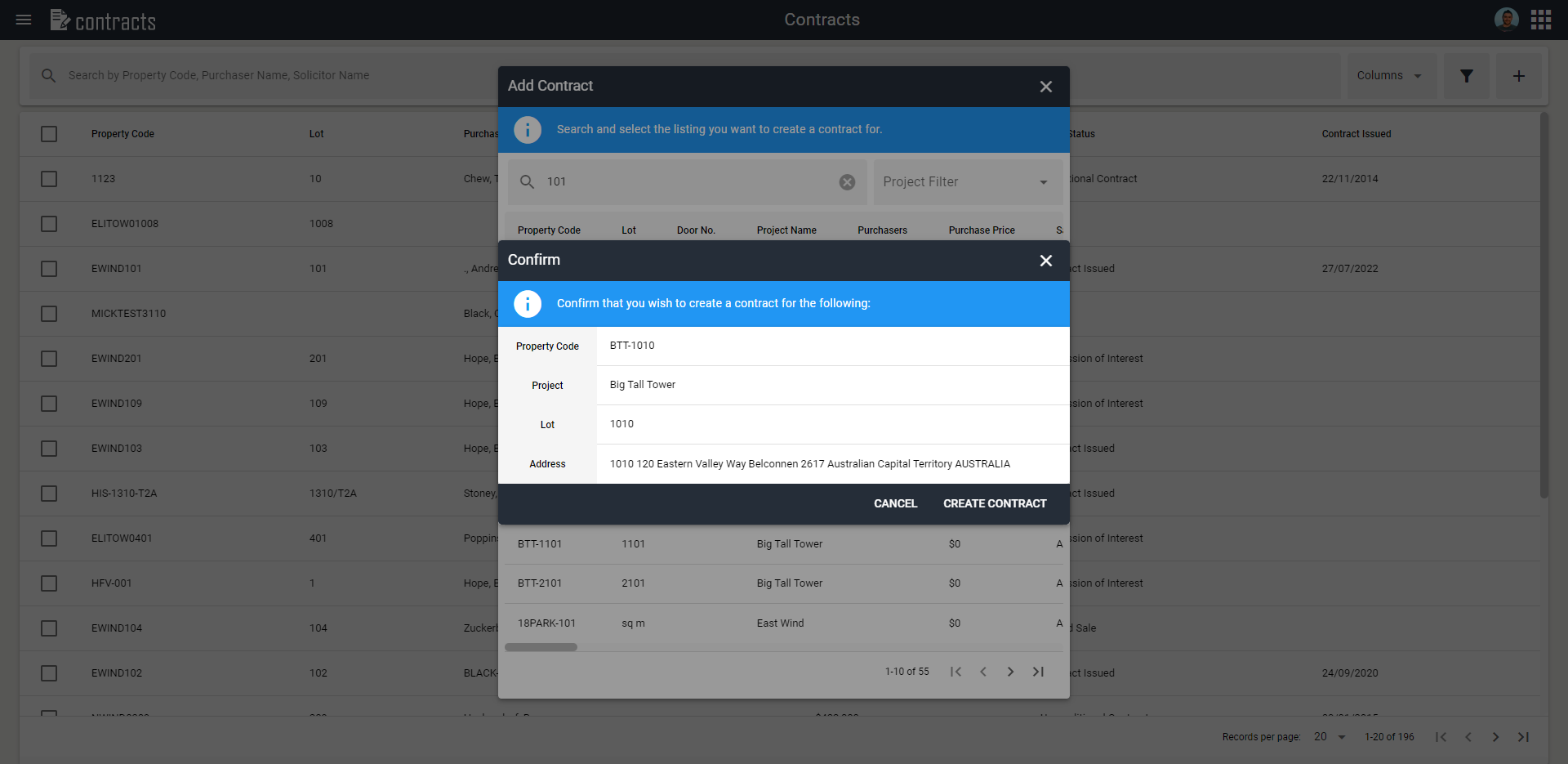
Click on this listing.
A dialog will open confirming the details of this listing. Click Create Contract to proceed.
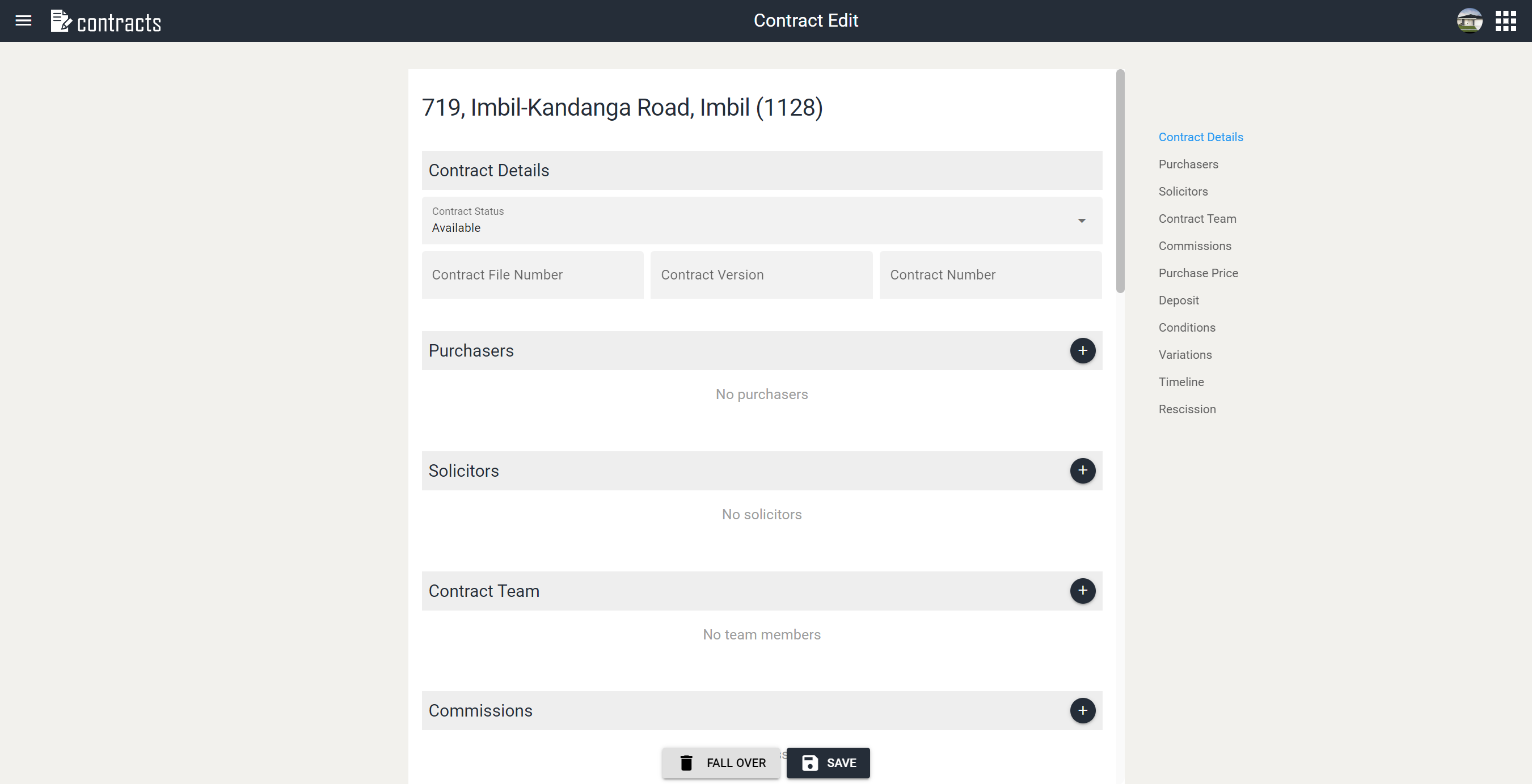
- In the Contract Edit page, add all relevant information to this contract e.g. purchasers, solicitors, etc.
INFO
A few important things to note:
- Ensure you move the contract to the correct Contract Status, as you cannot roll a contract back if you go too far forward - only fall it over.
- Adding some sections will open a new pop-up box, to allow you to search for the relevant purchaser or solicitor. Please note that in the case of Solicitors, the contact will not show in the pop-up box unless it has the Contact Category Solicitor marked against it.
- Depending on what stage you move the contract to, the CRM will require some dates (for handover, On Hold release, etc). The CRM will prompt you on which dates to add if you miss these when you go to save.
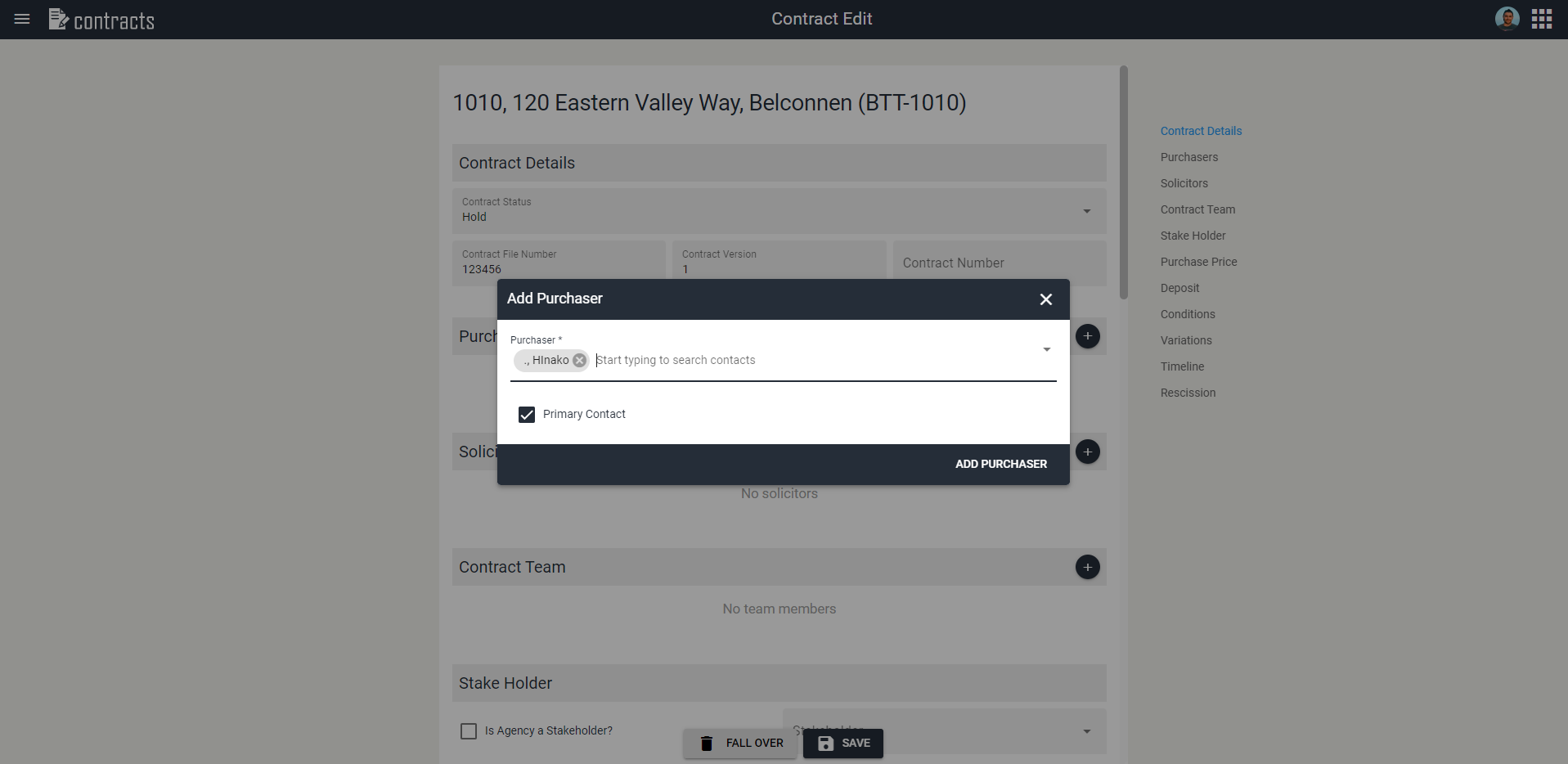
- Once you are happy with the details you have edited, click Save at the bottom of the screen. Congratulations, you have now added a new contract!
Edit a Contract
Open Contract Administrator module.
Search for the Contract you are looking for. You can use the search bar or the advanced filtered search.
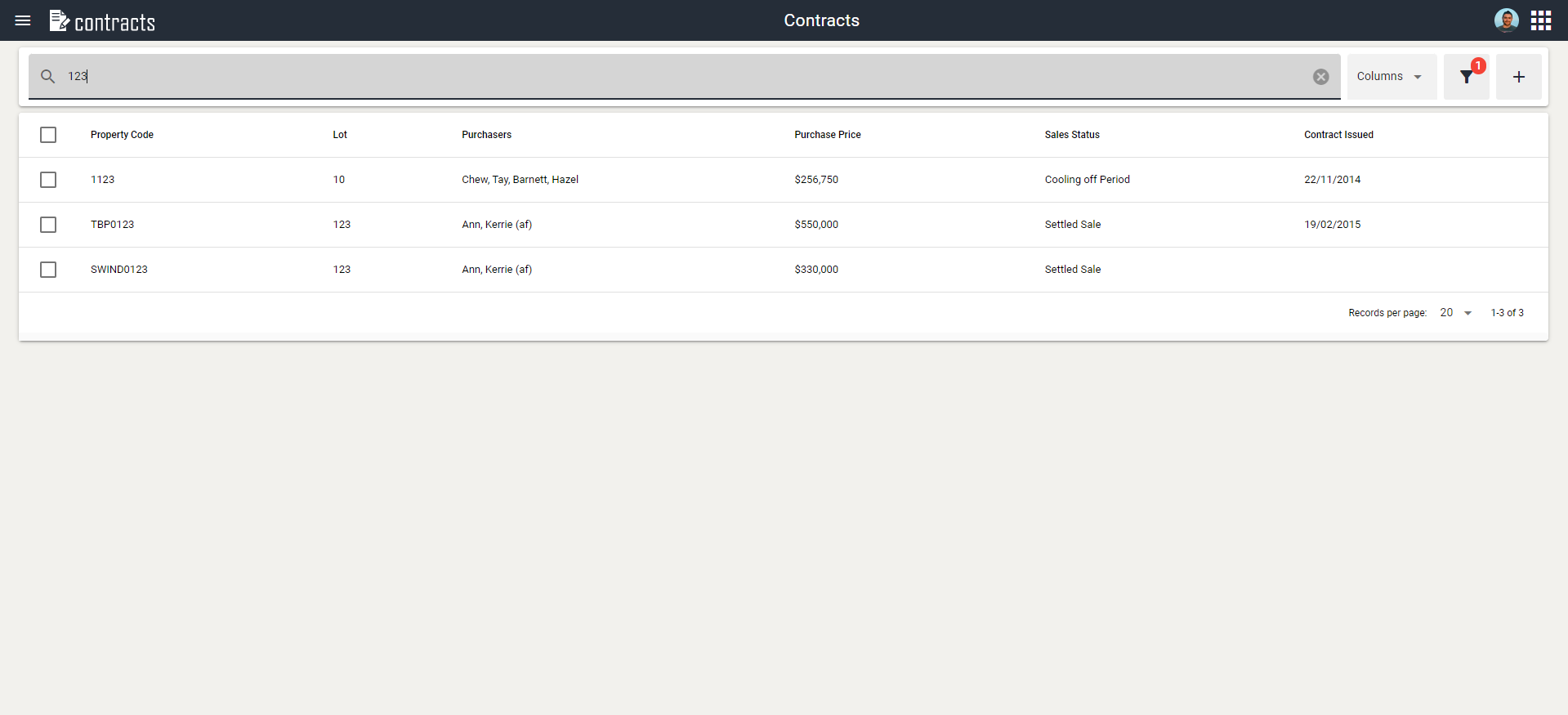
Click on the Contract you're looking for.
Click on the Edit button at the bottom of the page.
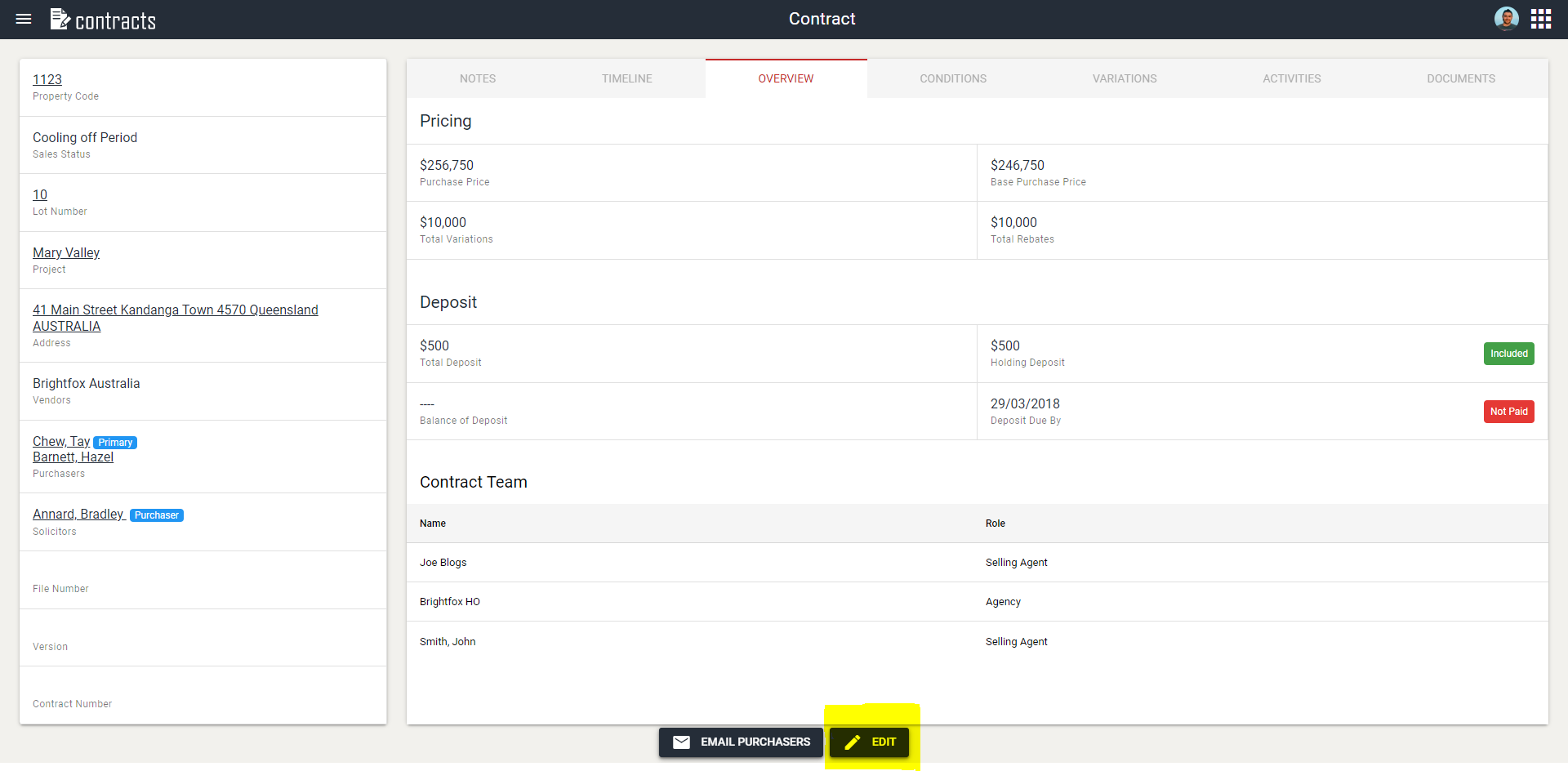
- Make the edits to the contract that you need to make. Please note, some edits (e.g. adding a Holding Deposit) require dates to be added before you can progress and save. The system will prompt you of anything that is a required field when you go to save.
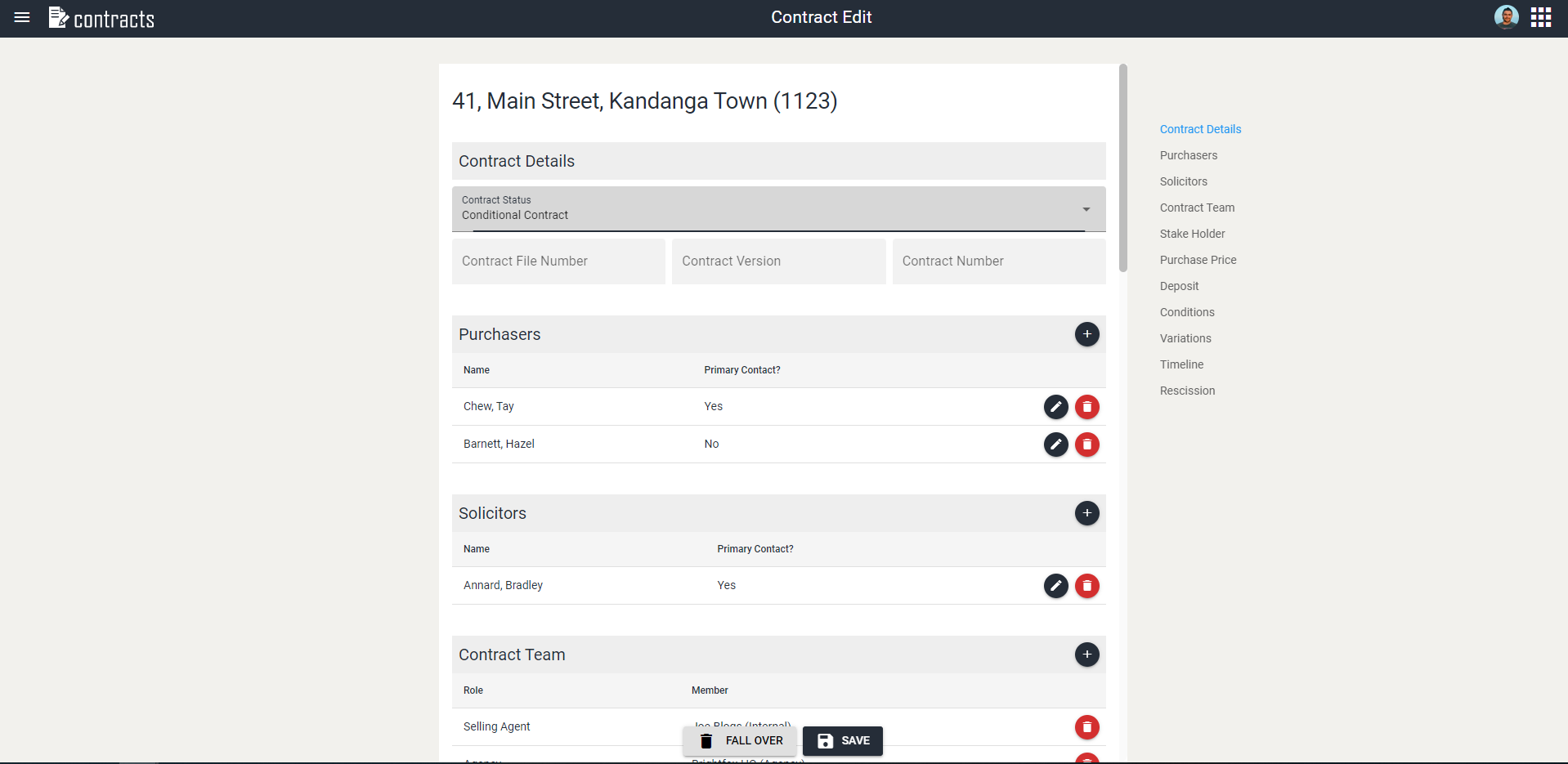
- Click Save. If you have missed a required field, these fields will be highlighted in red to remind you what needs to be updated before you can save.
Fallover a Contract
Open Contract Administrator module.
Search for the Contract you are looking for. You can use the search bar or the advanced filtered search.
Click on the Contract you're looking for.
Click on the Edit button at the bottom of the page.
- Click on the Fallover button at the bottom of the screen.
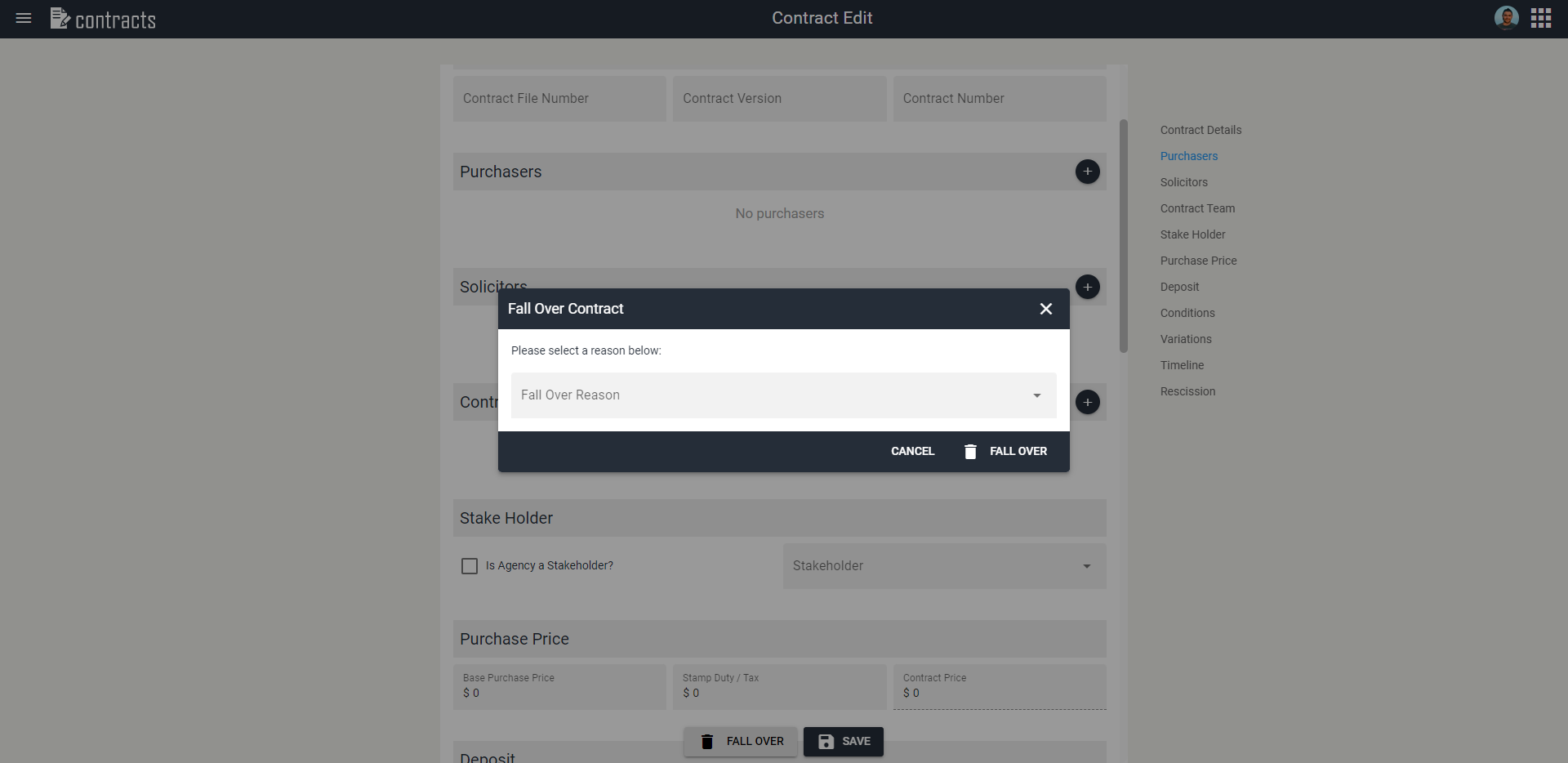
- In the pop-up box, select the fallover reason you want to use from the drop down.
INFO
If there is no fallover option, or the reason you want to use does not exist, please speak to a user with Administration permissions for them to add these for you.
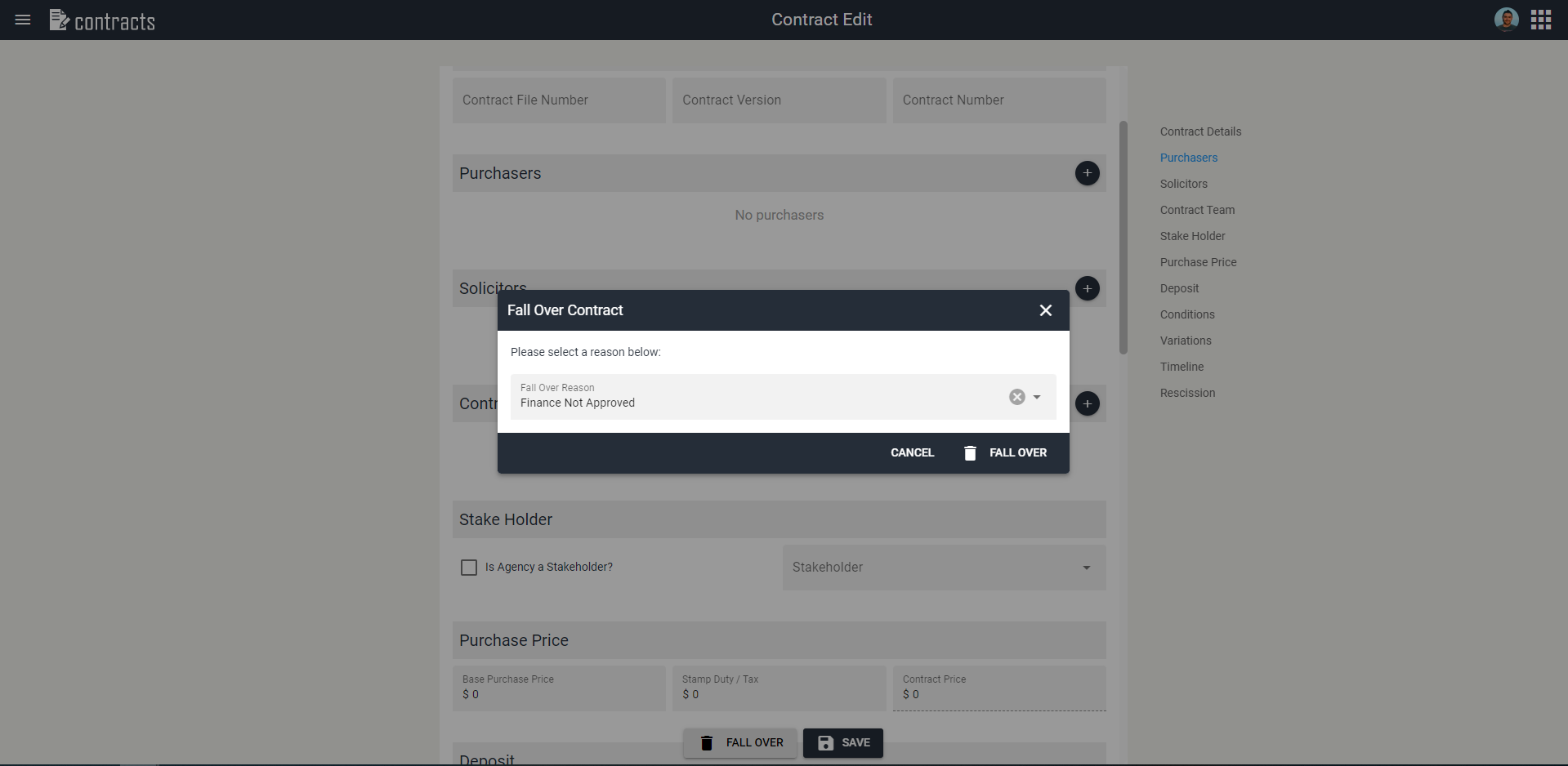
Click Fallover.
You have now fallen this contract over, and can now add a new contract on that listing if you want to.
Add Contract Fallover Reasons
This action is performed in the Fox Admin module by administrators only. View the Fallen Over Reasons guide for more information.