Brightfox Support
Appearance
Importer
Import Contacts/Listings
To import Listings or Contacts, click on the appropriate button on your screen (in the example below, we will be using ‘Contacts Import’).
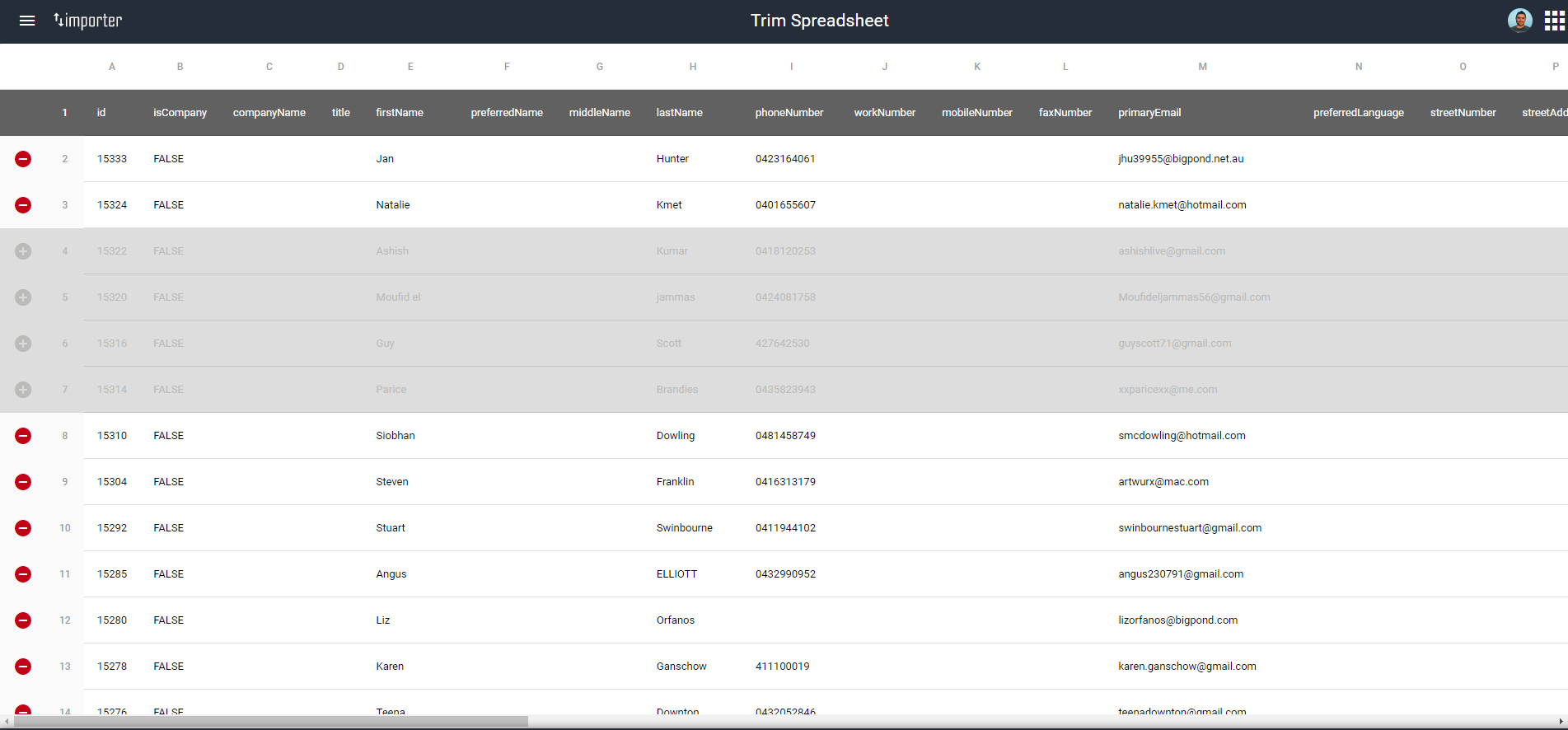
You will then want to upload the relevant excel document. The CRM will read this, and then automatically go to the next page where you can view the data. At this stage you can remove any rows that you may not want to bring through by clicking on the red cancel button on the left.
TIP
If importing Listings, you may need to check if the Project has a Project ID and Address before you can import. The system will show you a nice, big, red box with what data fields are missing, and these will need to be addressed before you can import against that Project.
WARNING
If reimporting Listings or Contacts, please ensure the Listing or Contact ID linked is the same – this is what the CRM uses to tell the different listings/contacts apart from each other, and if it is not included the CRM will create a new Listing/Contact with that data instead of updating the pre-existing Listing/Contact.
Please ensure all categories – such as status, Project of Interest, etc. – use the exact same spelling and capitalisation used in the CRM, otherwise the system will not be able to match these up.
Press Continue
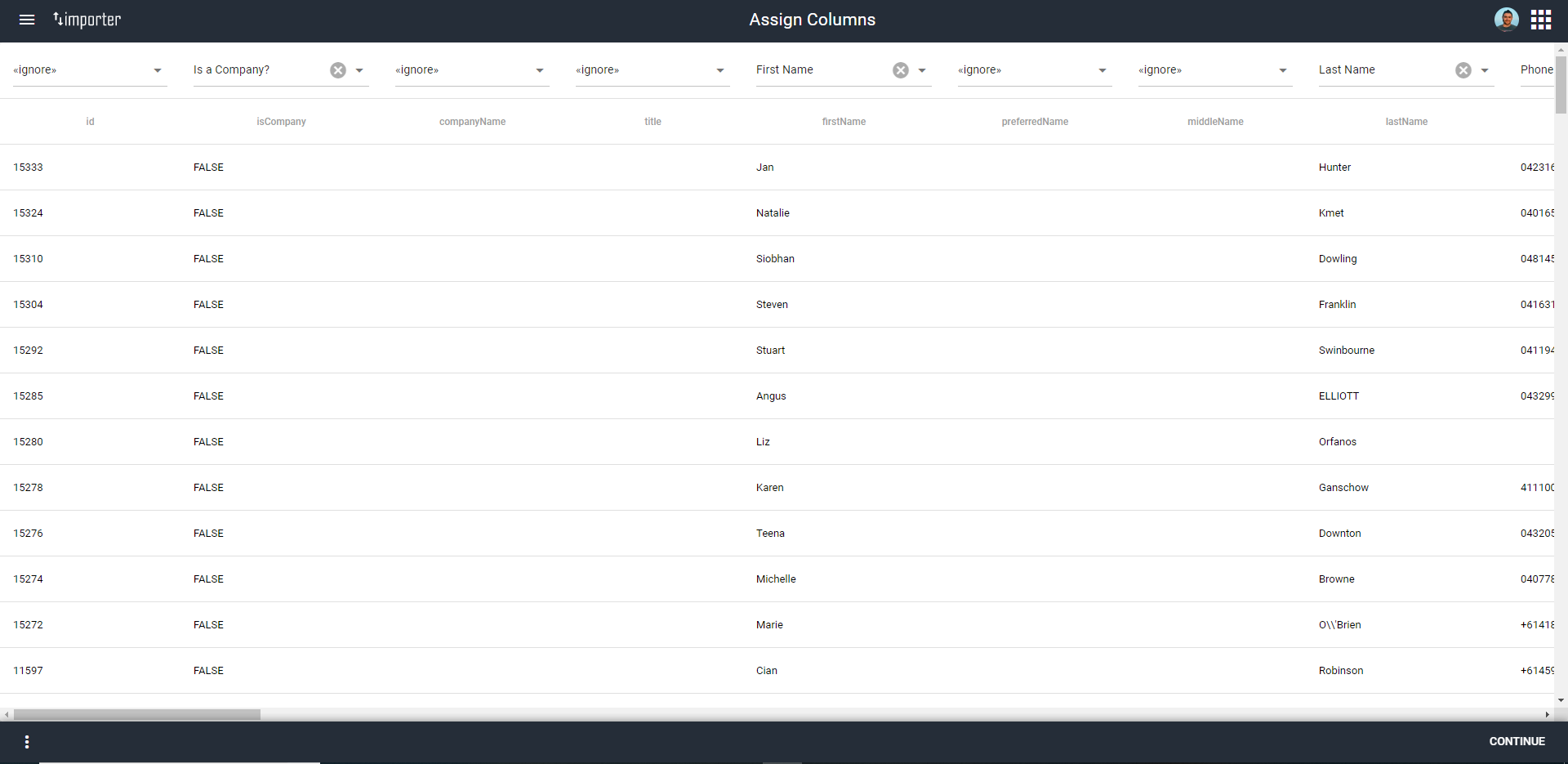
Match the columns in your sheet with the headings in the CRM. This may involve ignoring any columns you don’t want imported.
Press Continue
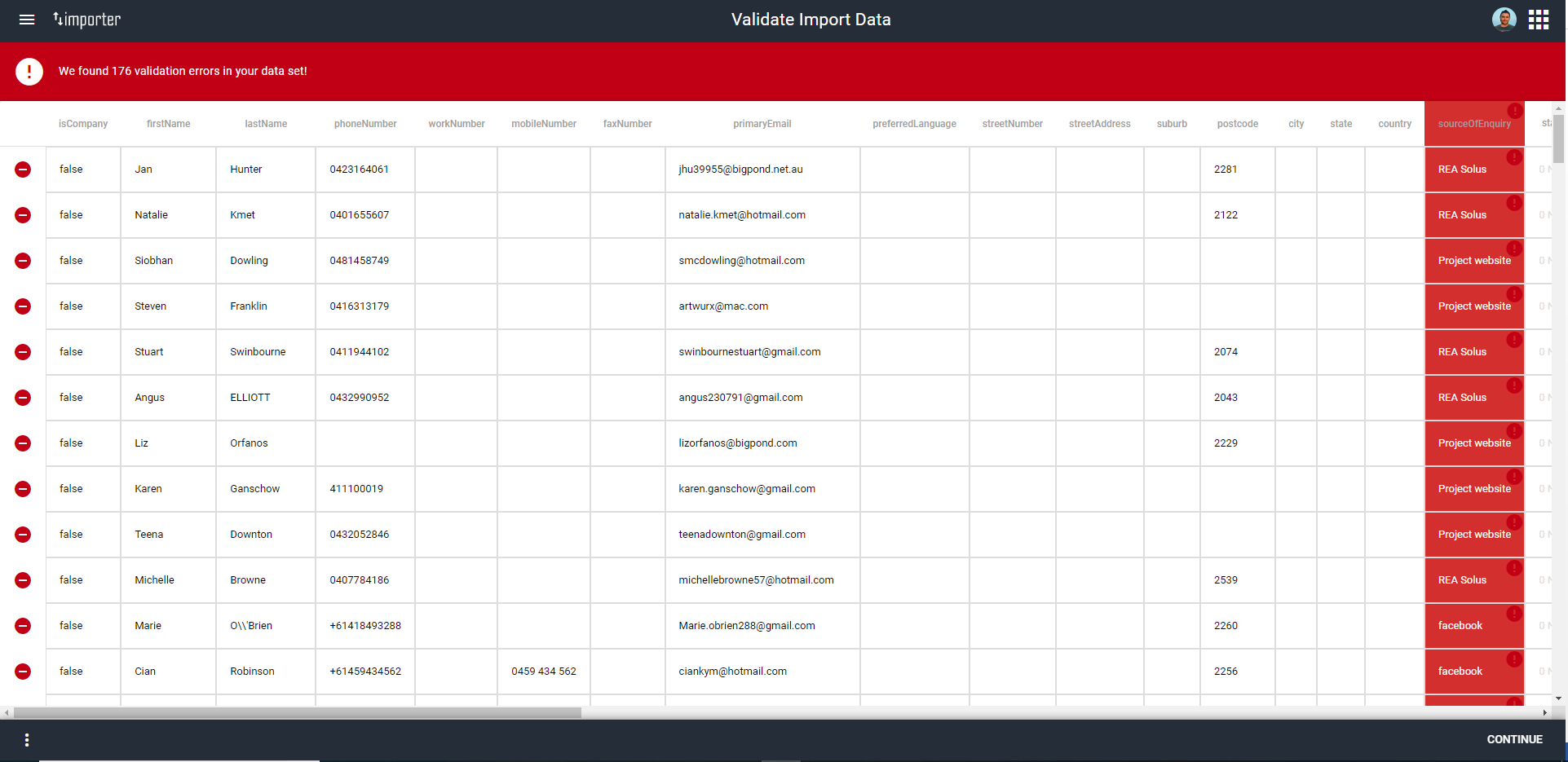
The CRM will now assess the data – if there are any validation errors, the system will now flag this and you will be able to address this. You may have to begin the import process again if, for example the Source of Enquiry values aren’t valid/don’t match to anything in your CRM.
If you are ready to proceed, press Continue
You will be shown a final verification page before upload. At this point, the CRM will highlight any new information in a pale green – if you are re-importing a list of contacts and are updating their emails, for example, only the email column will be green. In the example below, all data is new, so it is all green.
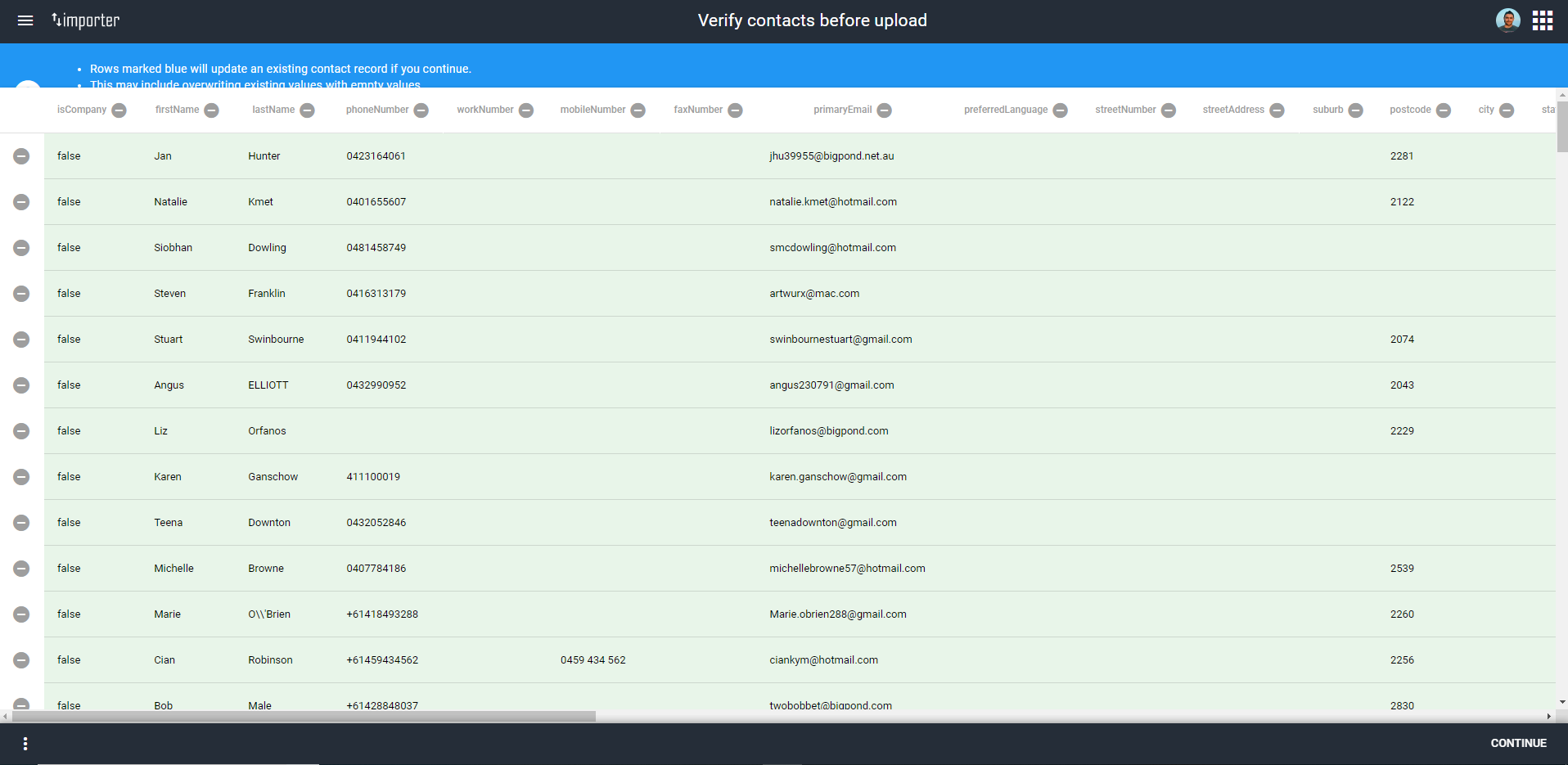
Press Continue
The spreadsheet will be uploaded into the CRM, and notify you of any errors.
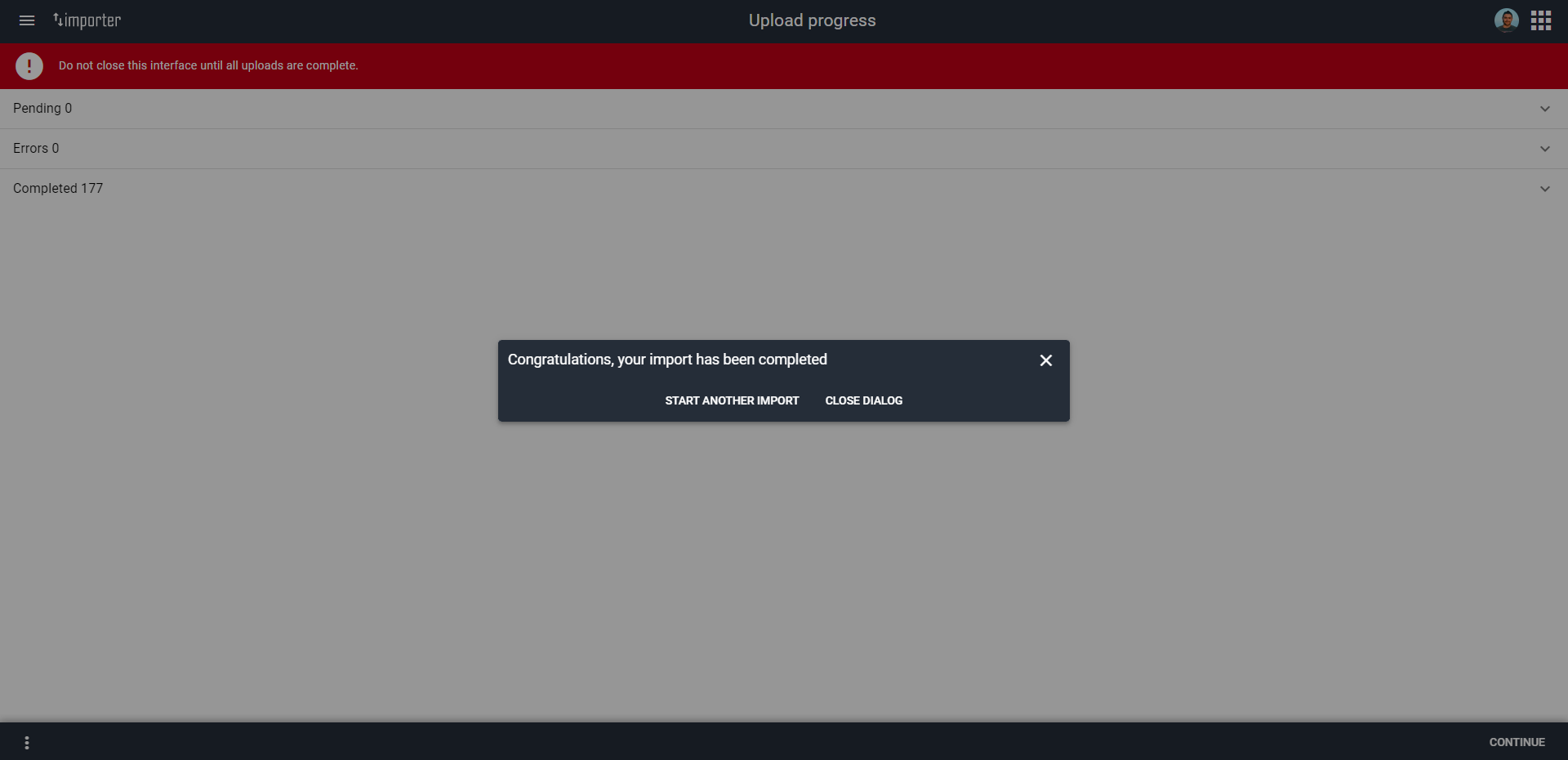
- The Listing import process is very similar to the above, and the system will walk you through each step.
Export Contracts/Listings
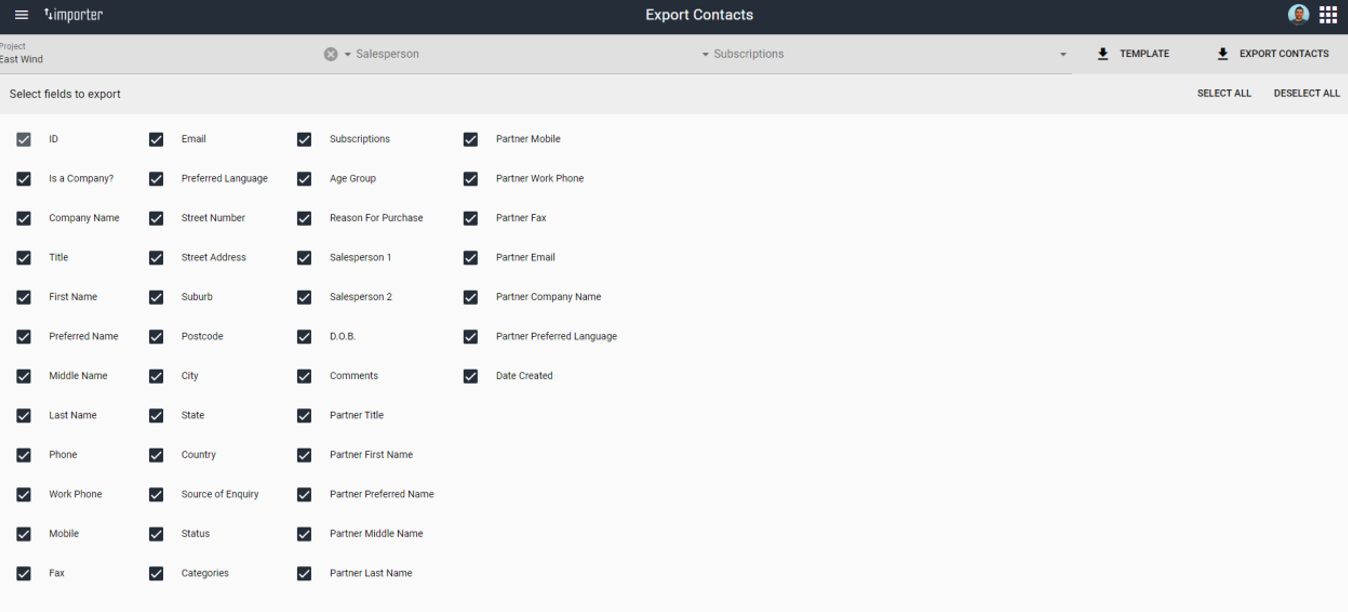
As with importing, the CRM makes exporting Listings and Contacts as simple as possible. After clicking on the relevant Export button, you will simply need to select the parameters of your export, including:
- Project
- Salesperson
- Subscription
- Data Fields
Once you have decided on the relevant parameters, you can then press Export Contacts/Listings. The data will download as an excel file onto your device.
You can also choose to export a template for your use, primarily to make importing easier.