 Brightfox Support
Appearance
Security Roles
Log into Fox Admin (requires Administration role).
Click the Security Roles tab in the side menu.
Create a Security Role
To create a Security Role, click the + button.
Enter the name for the Security Role.
Select a Branch to assign it to (optional).
Click Add Security Role.
Update a Security Role
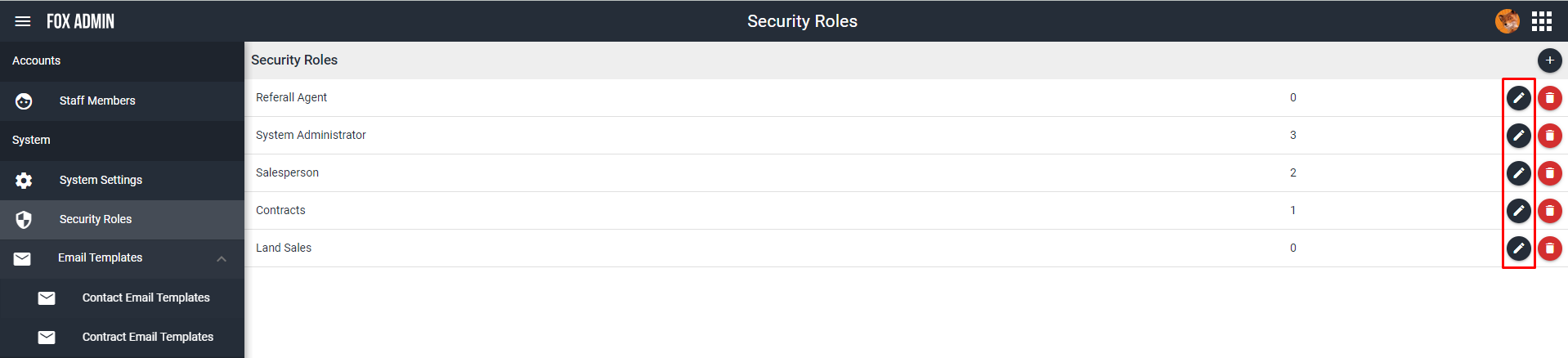
To update a Security Role, click the Pencil icon on the Security Role you want to update.
Update the required details for the Security Role (Role Name, Branch, Users, Permissions).
Click Save Security Role
Delete a Security Role
To delete a Security Role, click the Bin icon on the Security Role you want to delete.
Click Delete Security Role.
Transfer Activity Permissions
Locate the role you wish to grant Transfer Activity permissions to.
Click on the Pencil button to edit it.
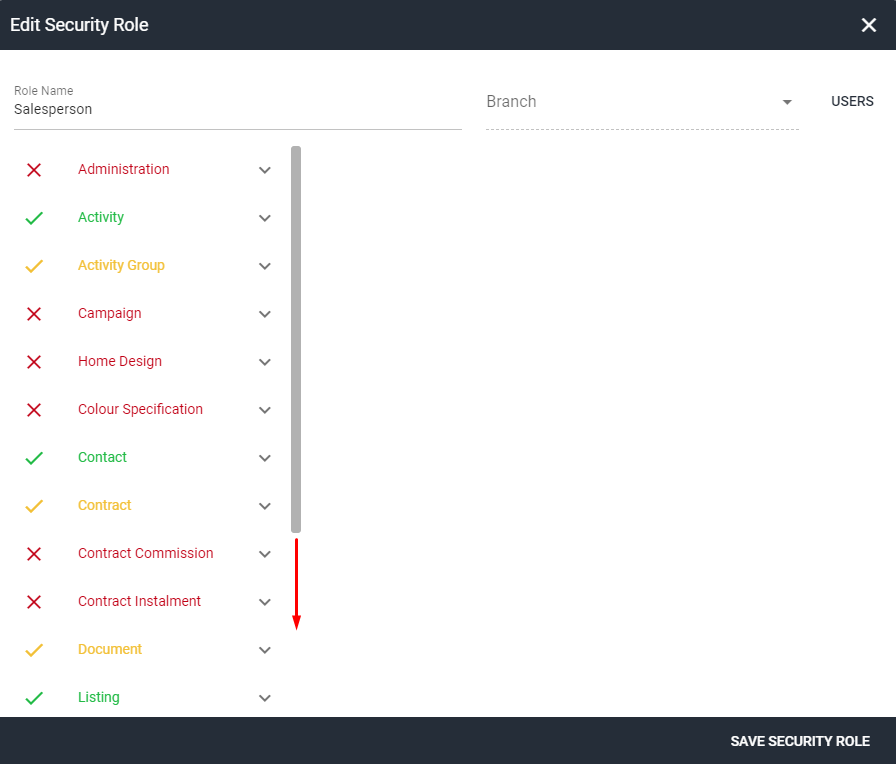
- Scroll to the bottom.
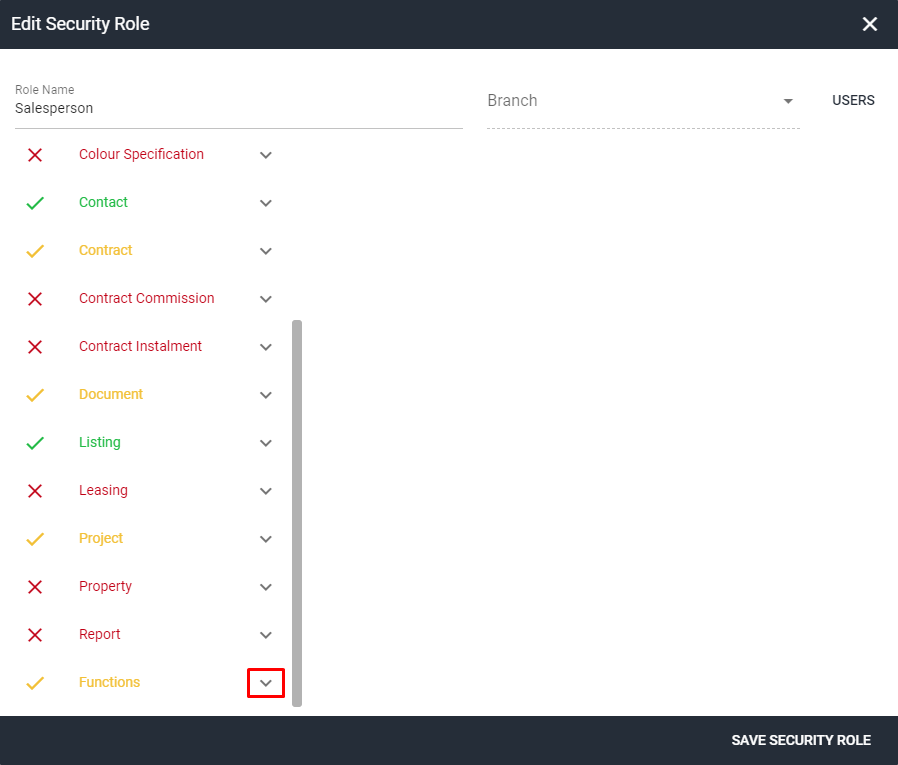
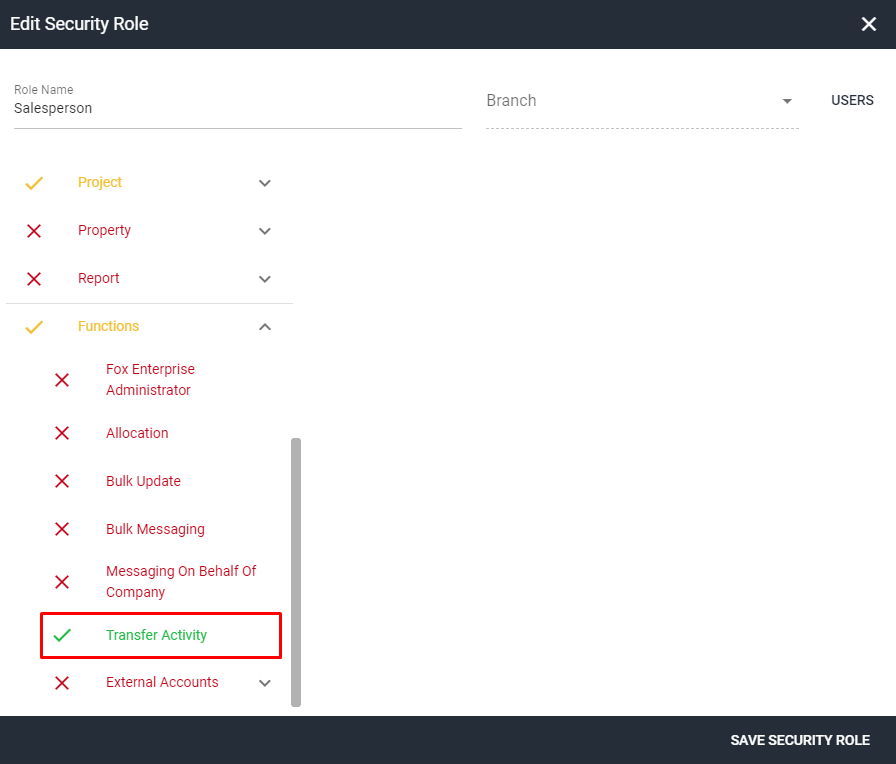
- Open the Functions drop down menu.
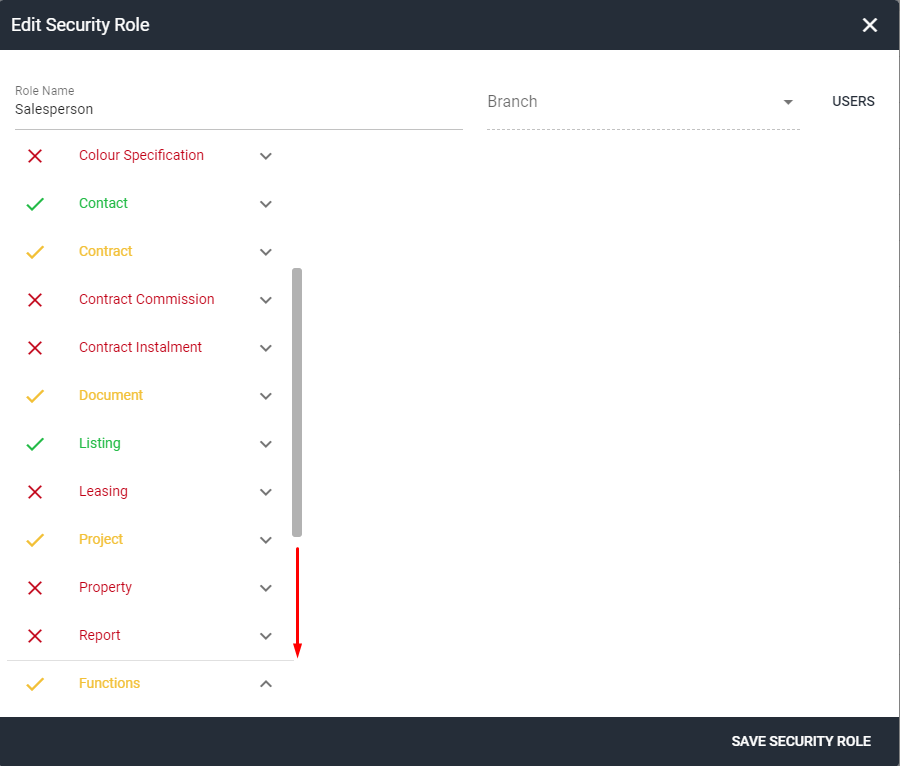
- Scroll to the bottom.
- Click on Transfer Activity.
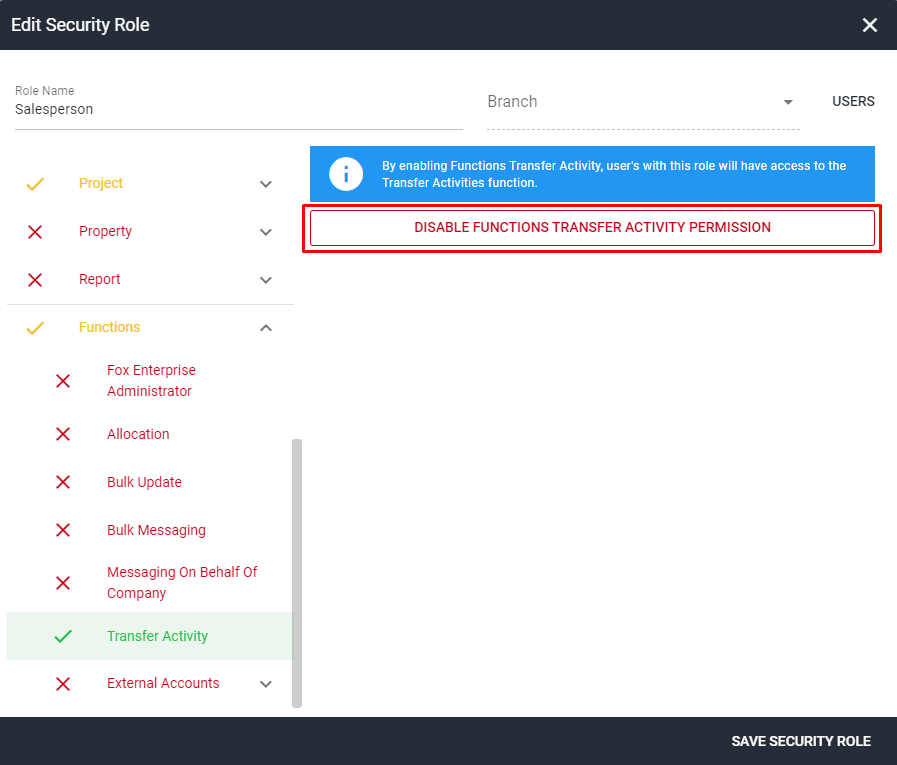
- Click on Disable Functions Transfer Activity Permission.
- Remember to click on Save Security Role.
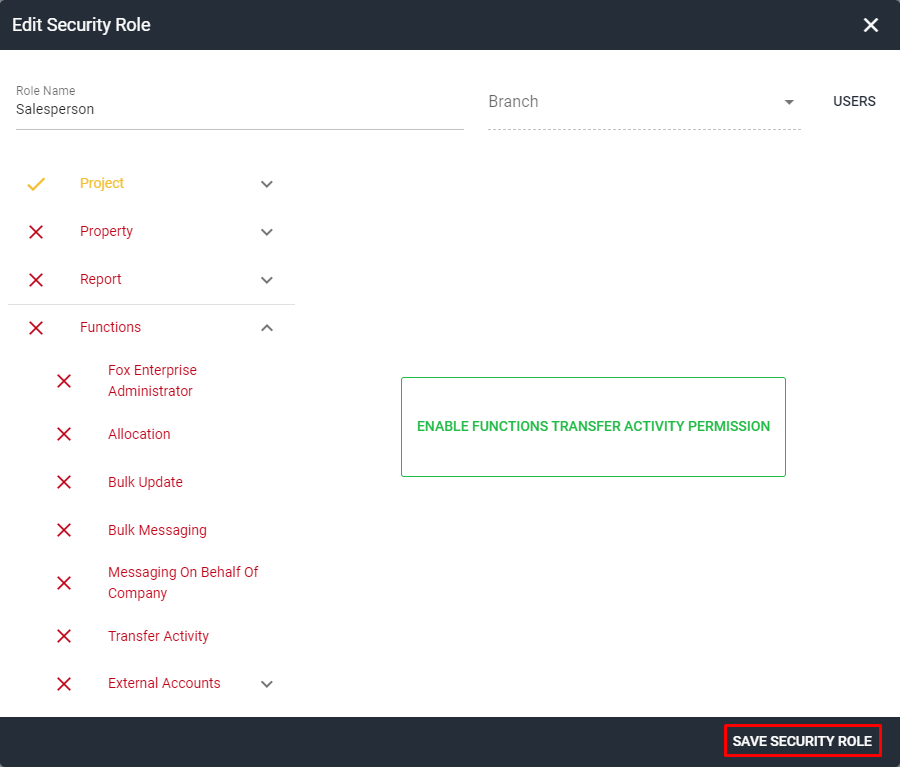
This role will now be able to add or edit activities in SalesCRM with the ability to click and assign a user from the drop down list when Assigned to User is selected. For more information on this refer to Transfer Activity in Activities.