Brightfox Support
Appearance
Contacts
Add a Contact
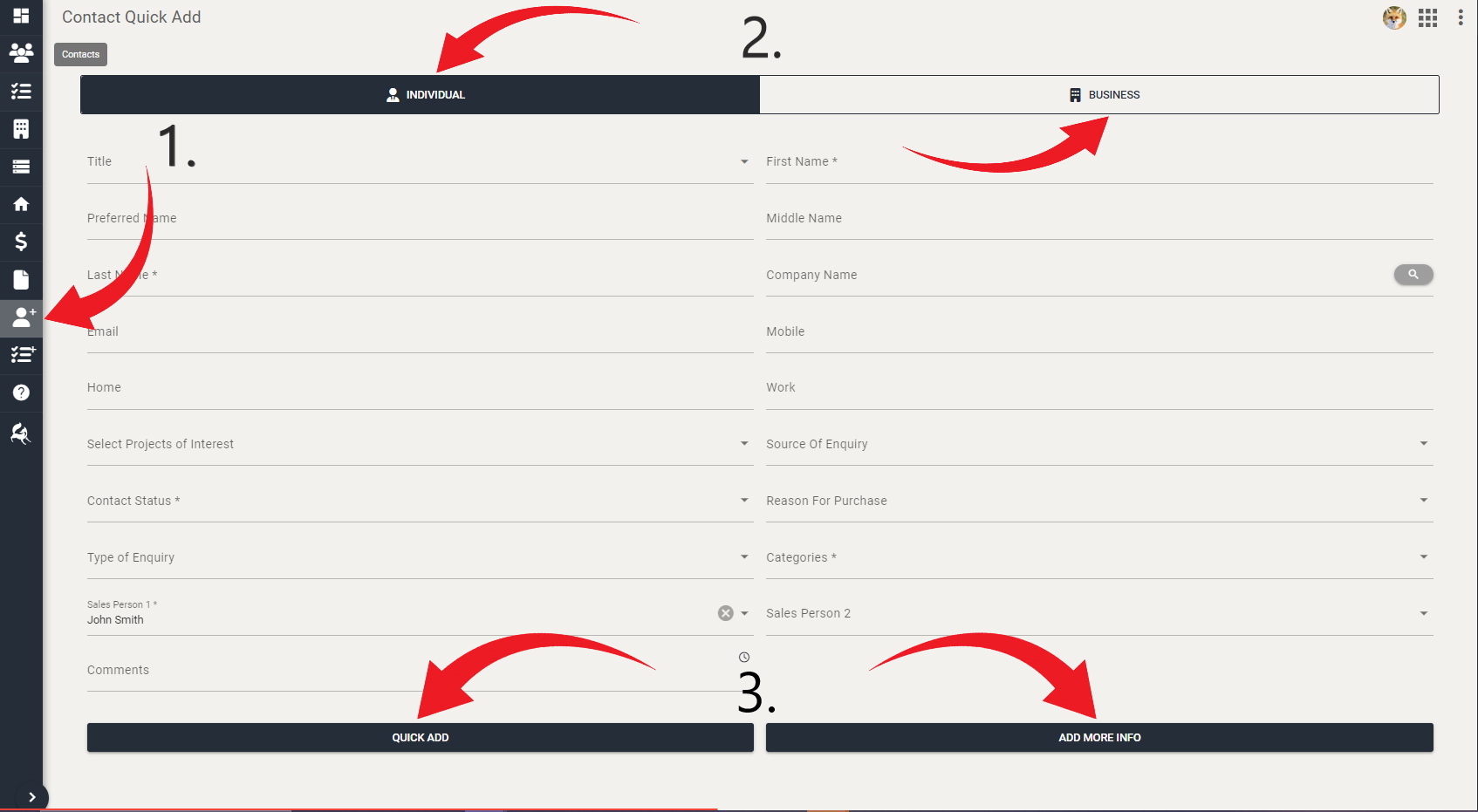
Navigate to Add Contact tab.
You can add individual or business contact details. Click on the type of contact you would like to add.
You can either click Quick Add to save the new contact details, or you can click Add More Info which will take you to a new screen to add more contact details such as profile picture, contact information, notes, details and interest.
Add a Warning Note
Navigate to Contacts tab.
Locate or search for the contact you want to edit.
Click on the contact.
At the bottom-center of the screen, click the Edit button.
Click the Notes tab.
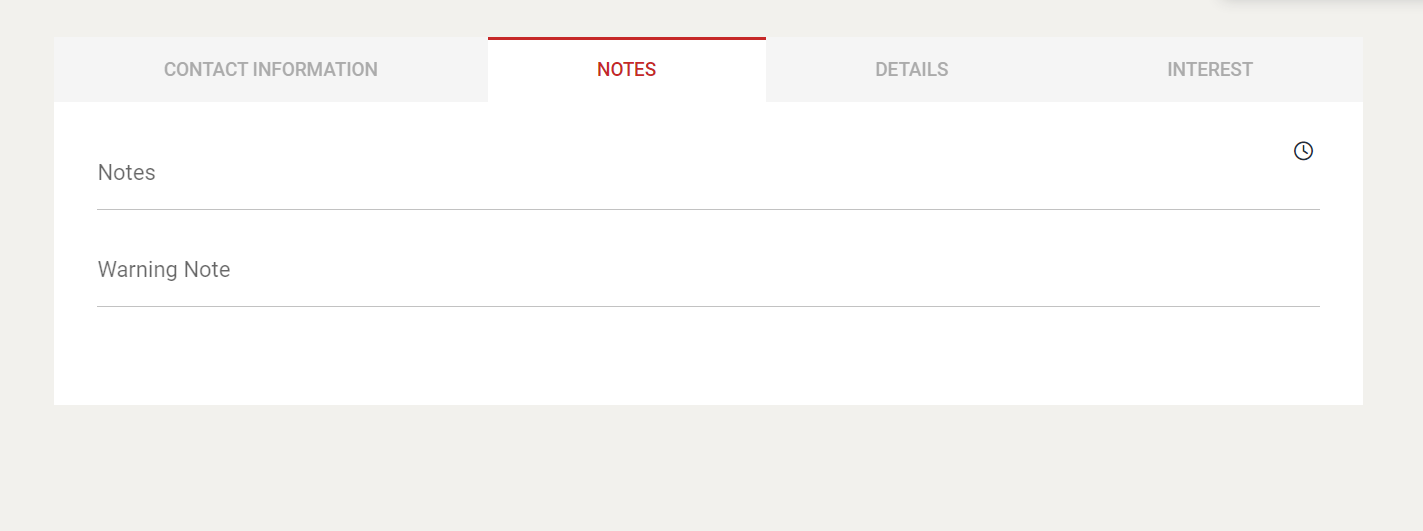
Enter your description in Warning Note.
Click Save.
Import/Export Contacts
Learn how to bulk import or export your contacts using the Importer guide.
Customise Columns View
We give you the option to choose what pieces of information about your contacts you wish to view in the contacts Table View, so you can tailor this to your company's specific needs.
Navigate to the Contacts tab.
Ensure the list of contacts is in Table view and not grid view. If it is in grid view, select the list icon to the right of the search bar.
Towards the end of the search bar, click on the Columns drop down.
Here you can select what columns of information you would like to view for your list of contacts.
TIP
This is especially useful for when you're exporting this data into a .csv file and only want to view specific categories.
View Contact Activities
Navigate to Contacts tab.
Locate or search for the contact you want to edit.
Click on the contact you want to view.
Navigate to the Activities tab. Here you can view the pending and completed activities related to this specific contact.
Edit a Contact
Navigate to Contacts tab.
Locate or search for the contact you want to edit.
Click on the contact.
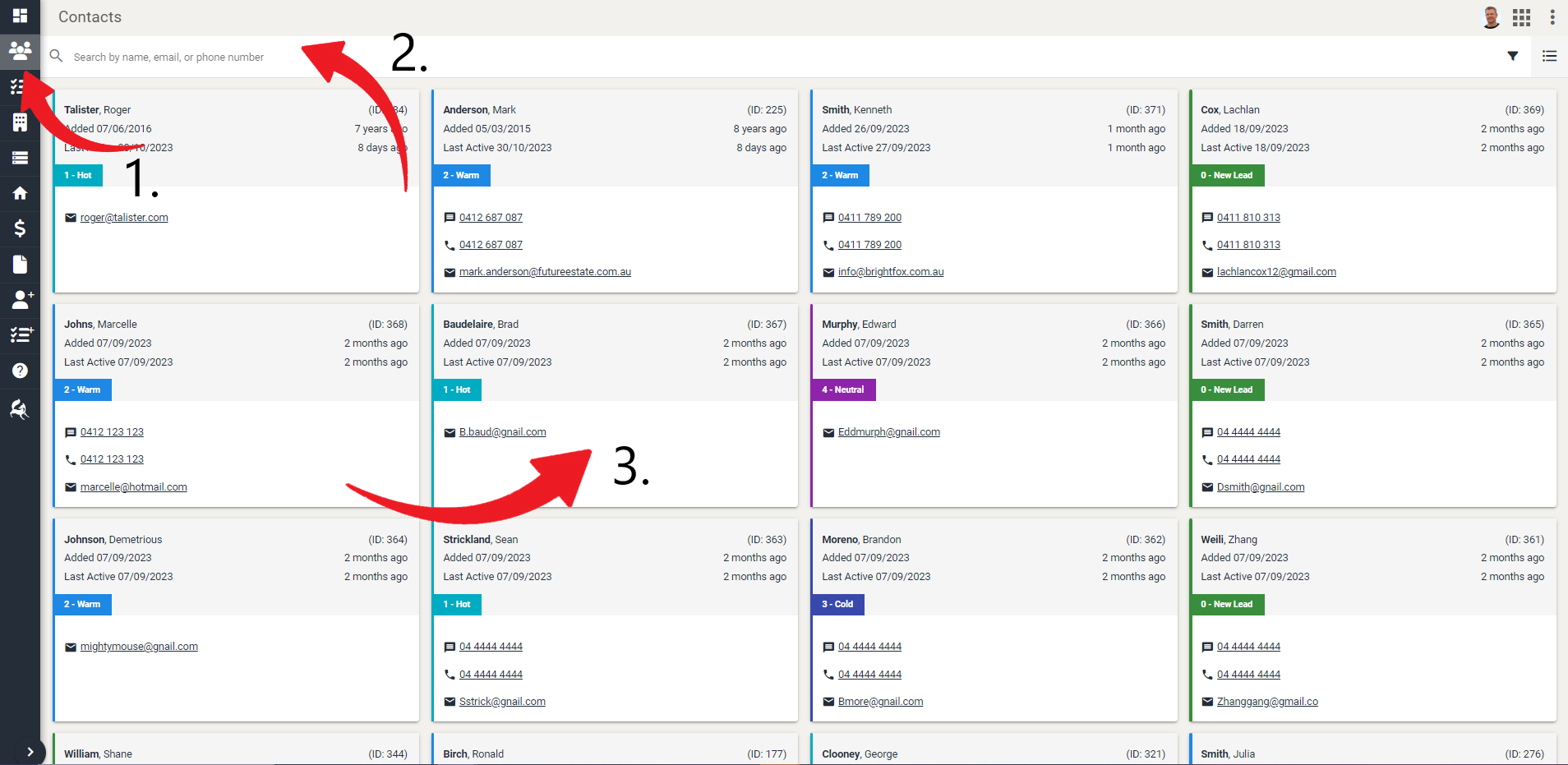
- At the bottom-center of the screen, there will be Edit, Follow Up and Email buttons. Click on Edit.
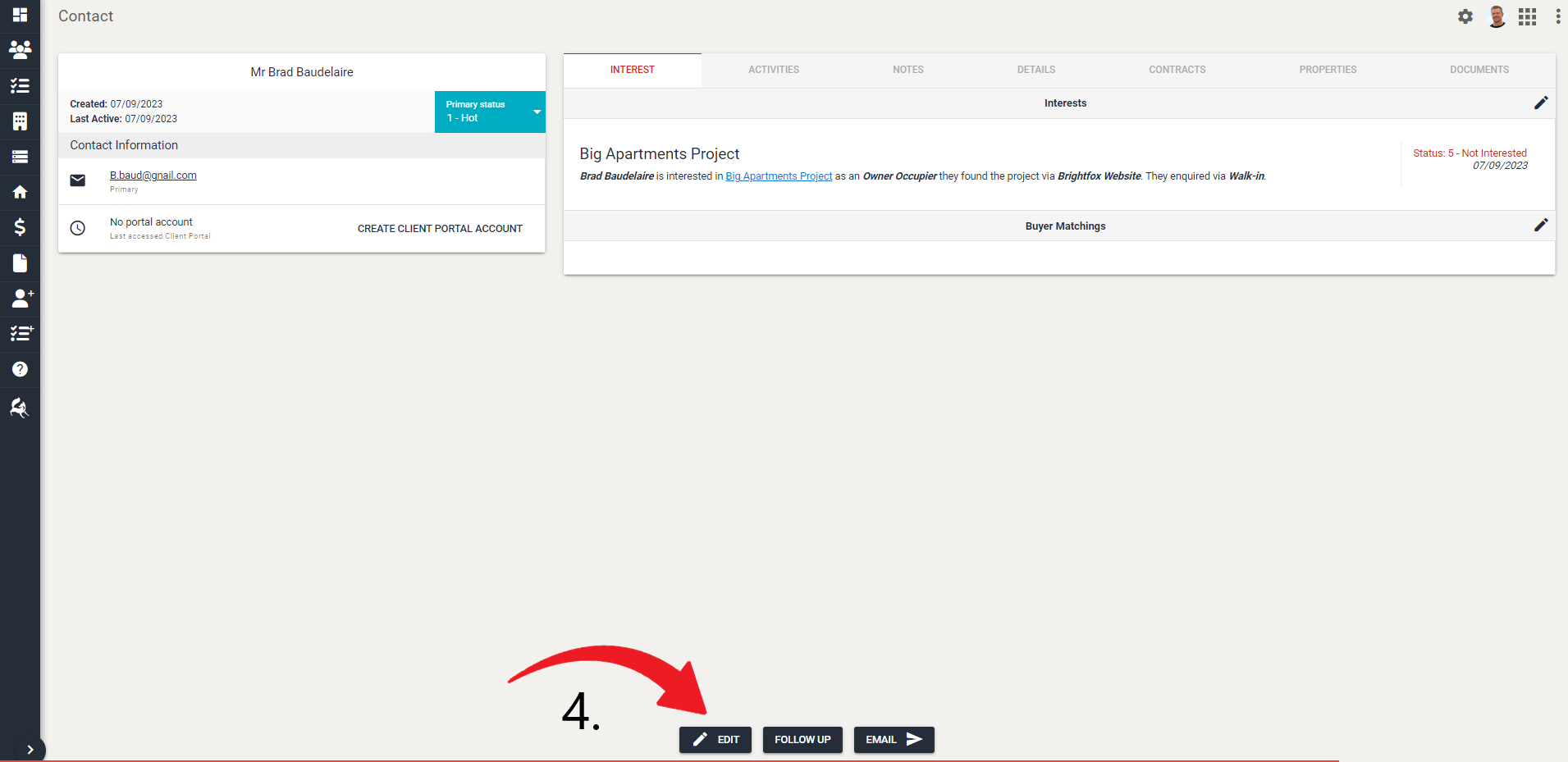
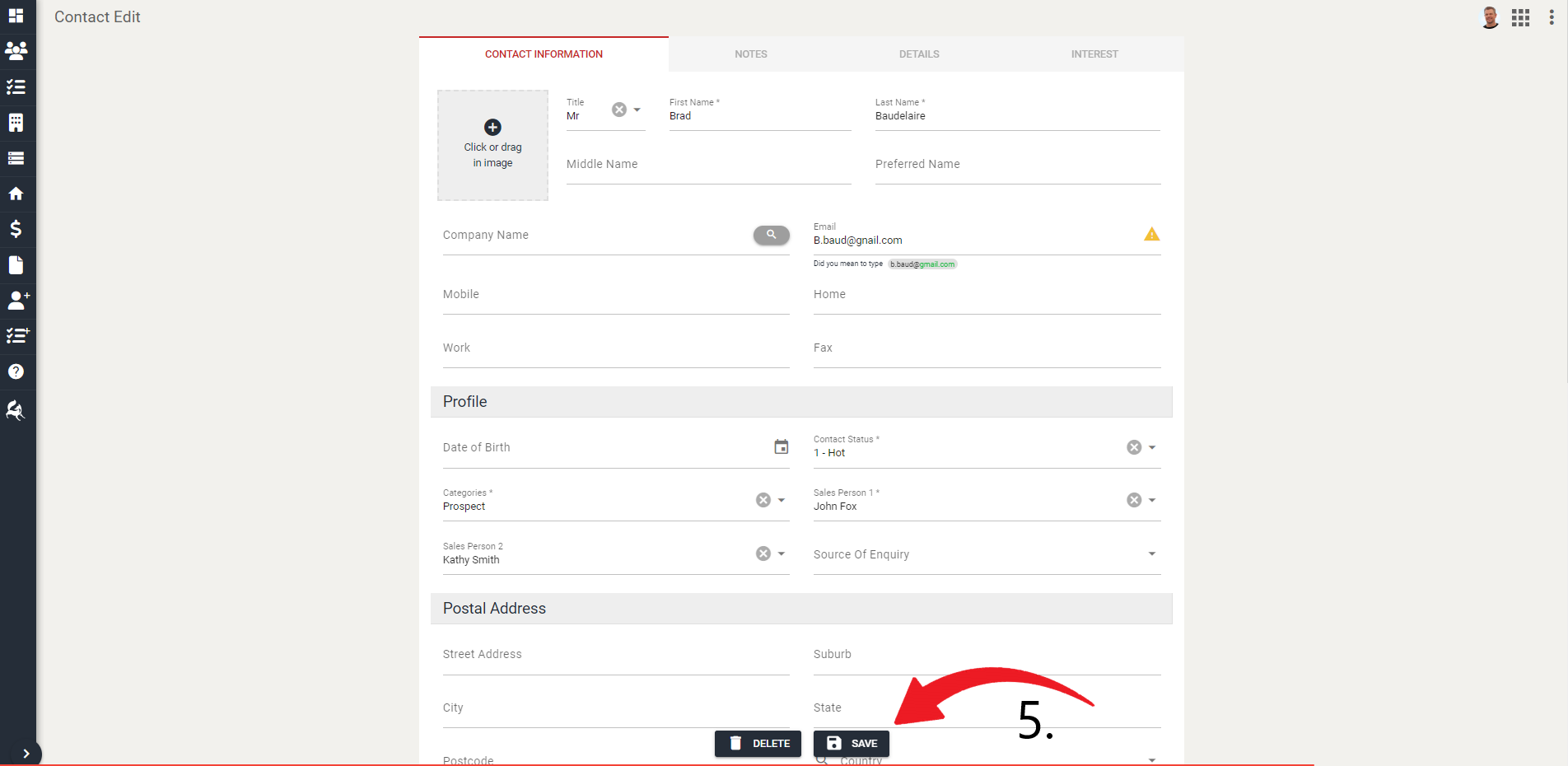
Edit the information as required.
Click Save.
Edit Communication Preferences
Navigate to Contacts tab.
Locate or search for the contact you want to edit.
Click on the contact.
At the bottom-center of the screen, there will be Edit, Follow Up and Email buttons. Click the Edit button.
Scroll down to Allowed Contact Methods.
Enable or disable the communication preferences required.
Click Save.
Delete a Contact
Navigate to Contacts tab.
Locate or search for the contact you want to delete.
Click on the contact.
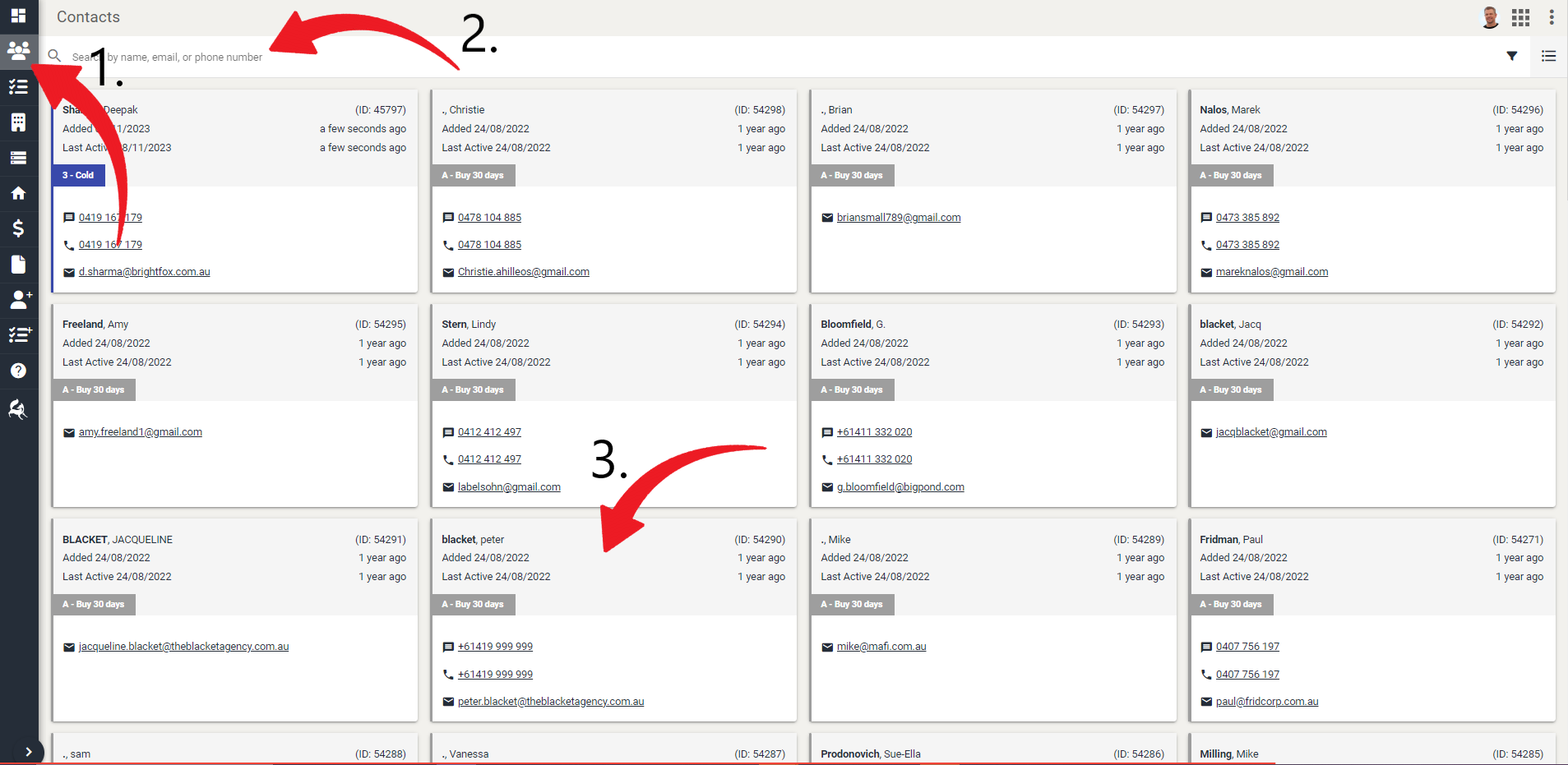
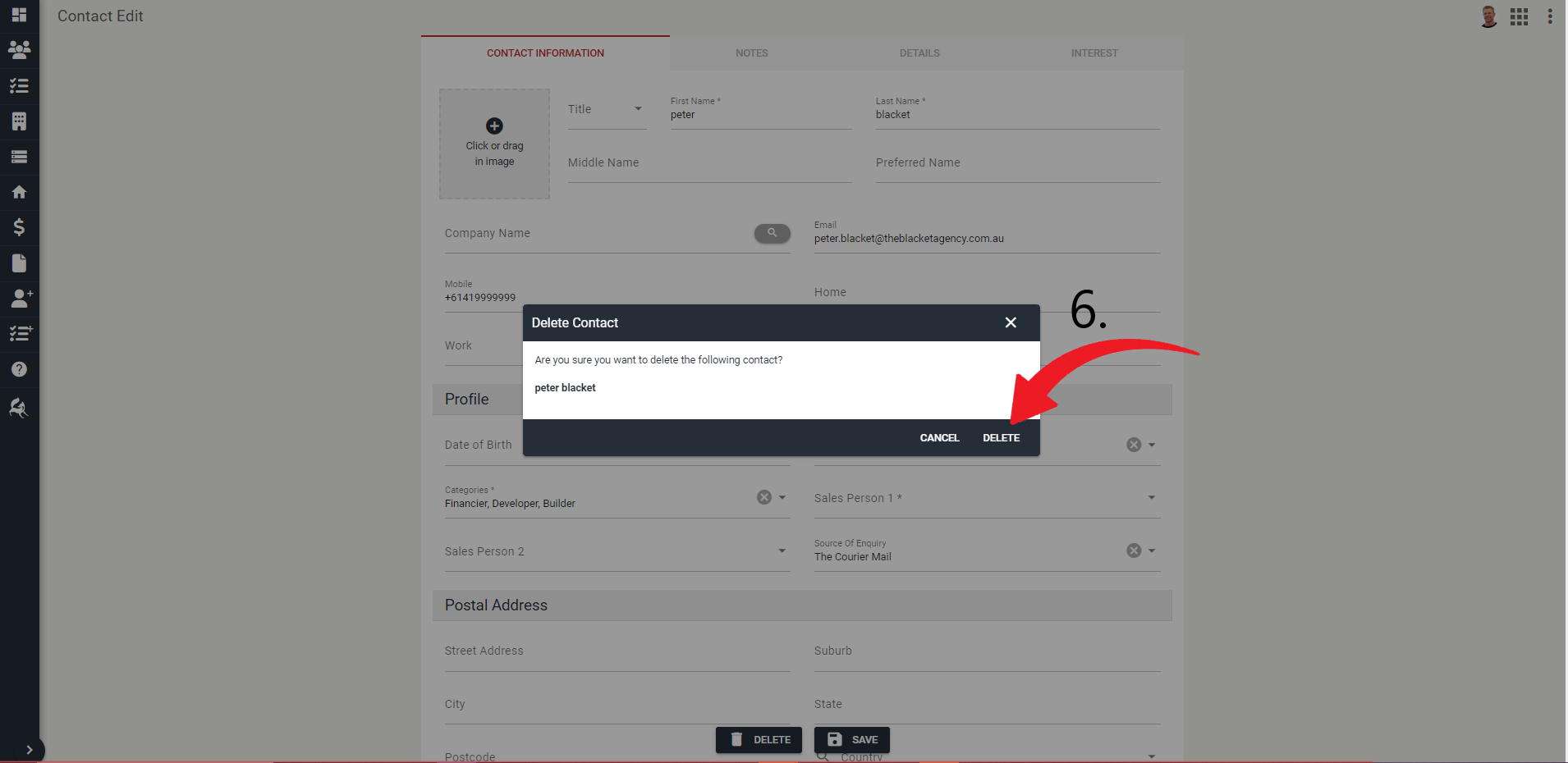
- Click Edit.
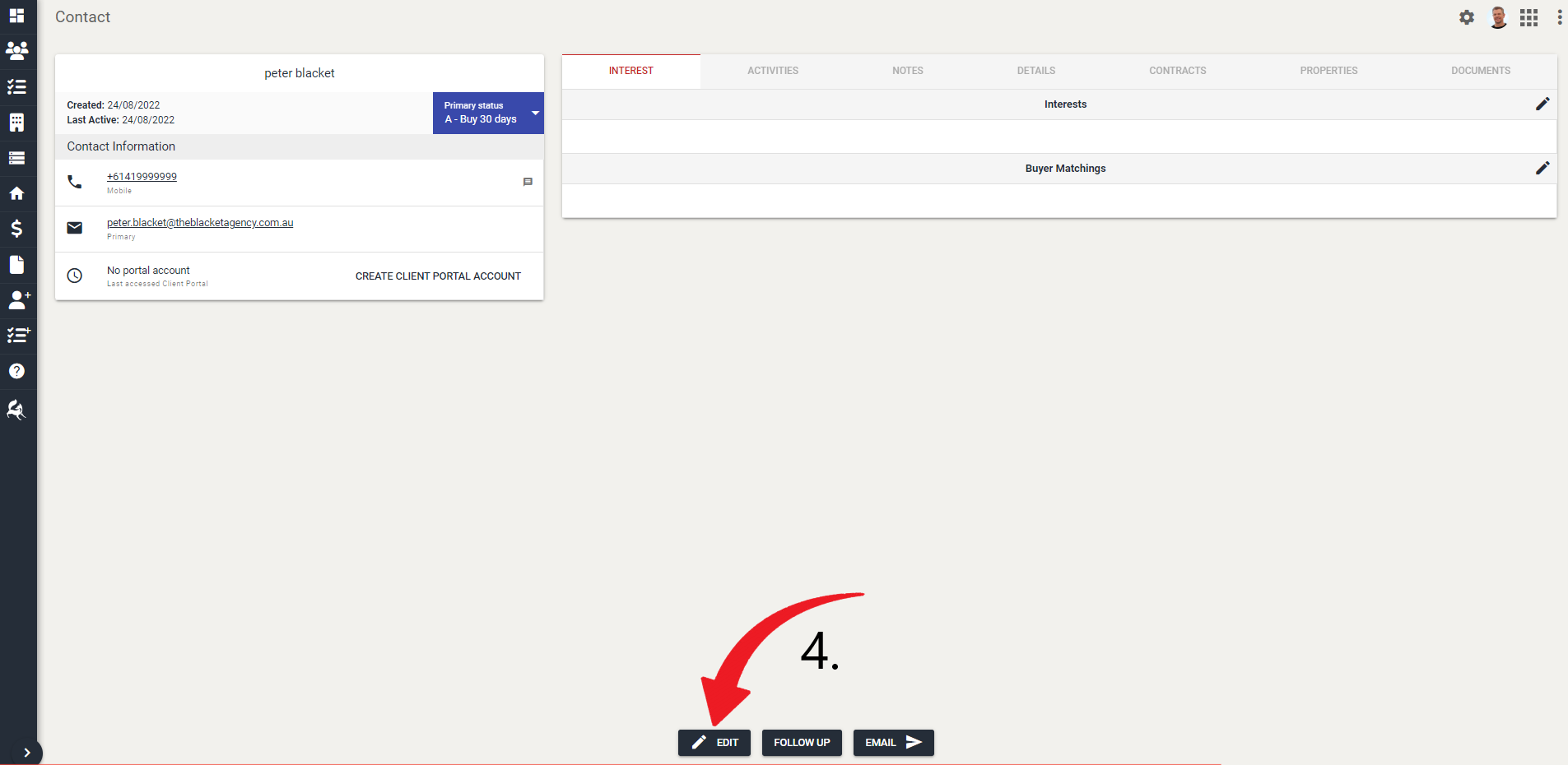
- Click Delete.
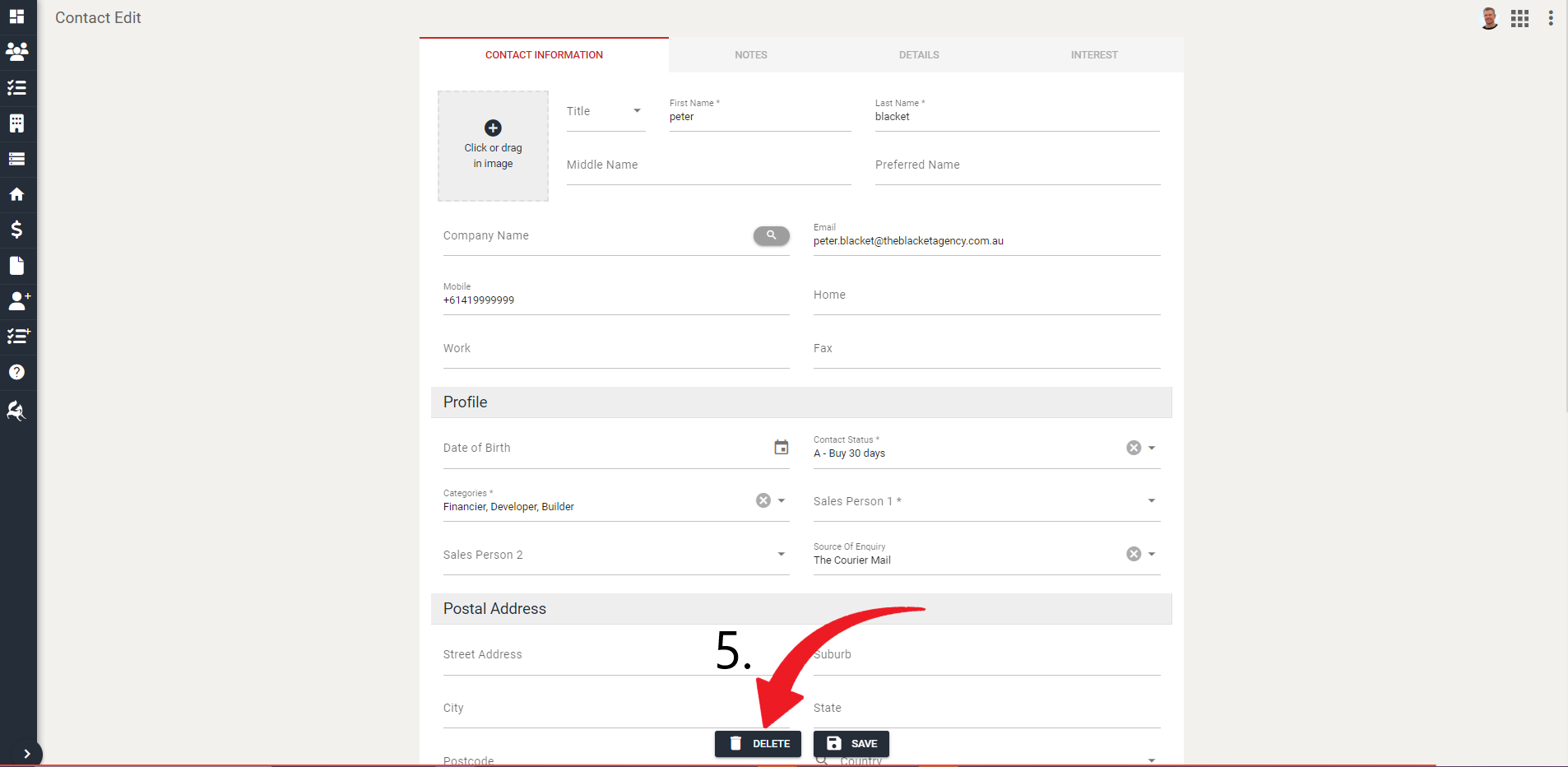
- Click Delete.