
Appearance
SalesCRM release notes: v6.16.0 (October 2026)
Title registration dates, contract condition character limits and UTM enquiry attribution
This release adds two new features and one improvement to SalesCRM.
- New: You can now record title registration dates on listings, and see UTM attribution data for inbound enquiries on a contact's profile.
- Improved: Contract condition categories now have maximum character limits.
Title registration dates
The Title tab on every listing now has an 'Is Title Registered?' field. You can record whether a title has been registered and, if it has, the actual registration date. If it hasn't registered yet, you can record an estimated title registration date instead.
- Existing listings show the title as not registered until you update them.
- When a title registers, tick the box and enter the actual date. This replaces the estimated date.
Find it: SalesCRM › Listing › Edit Listing › Title
Scenario 1: The title is registered
- Tick 'Is Title Registered?' A Title Registration Date field appears next to it.
- Enter the actual registration date. Pick it from the calendar, then save the listing.
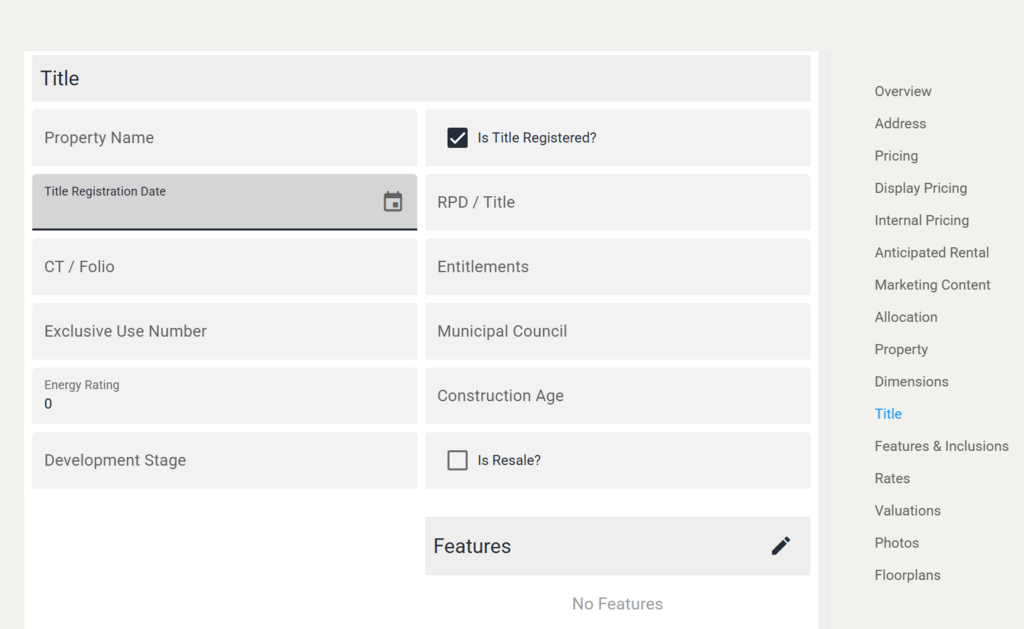
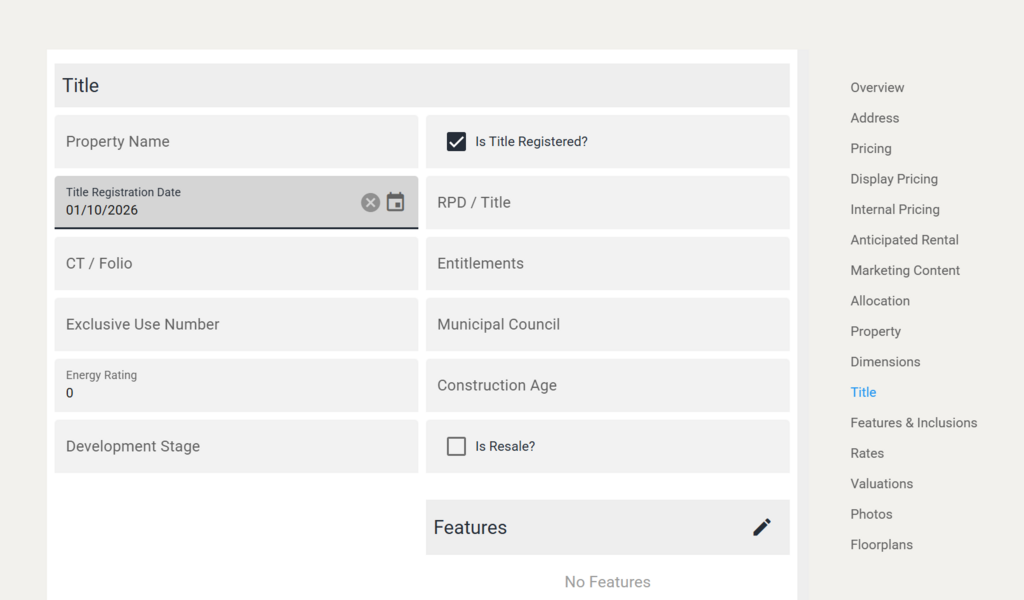
Result: The listing's Title tab shows Yes and the Title Registration Date.
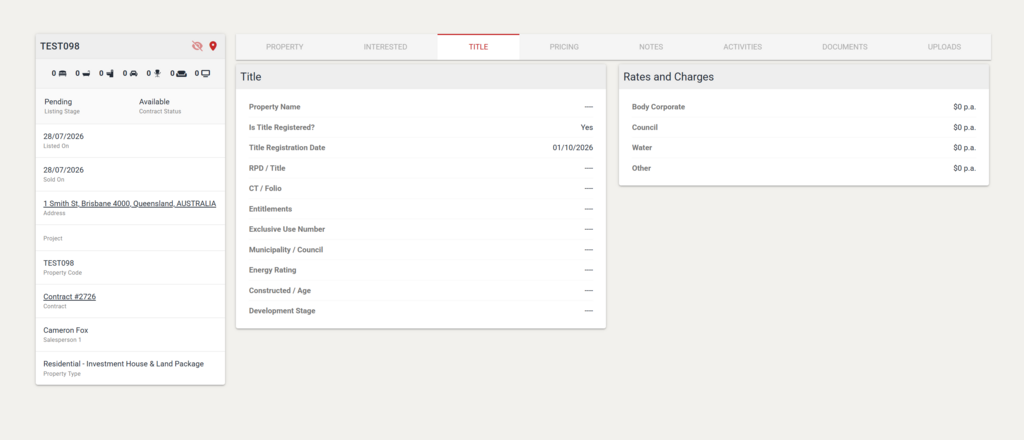
Scenario 2: The title isn't registered yet
- Leave 'Is Title Registered?' unticked. Enter the Estimated Title Registration Date instead, then save.
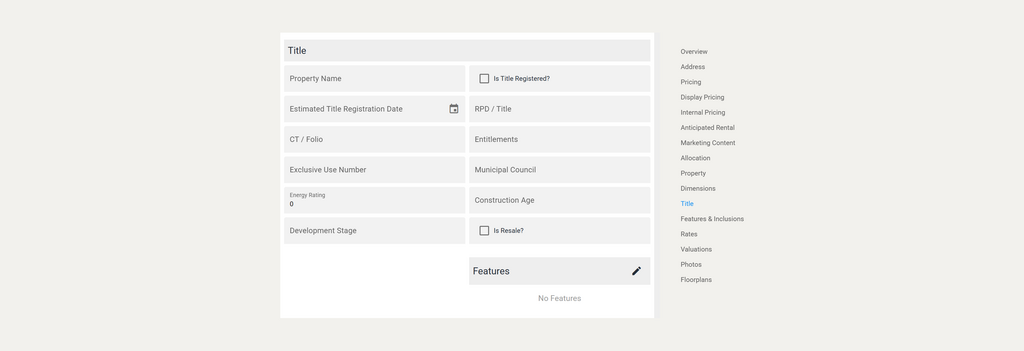
Result: The listing's Title tab shows No and the Estimated Title Registration Date.
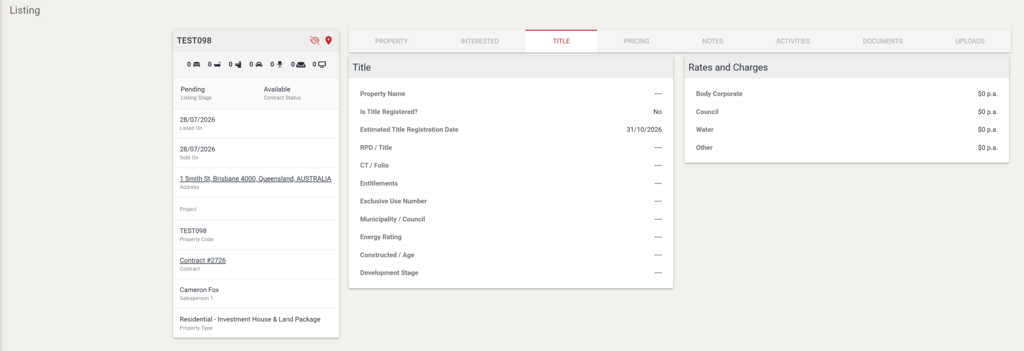
When the title registers: Edit the listing, tick 'Is Title Registered?' and enter the actual date. The confirmed registration date replaces the estimate.
Condition character limits
Conditions in the categories below now have a maximum character limit. If a condition is over the limit, the error message "The maximum length allowed is [limit]" appears below the field. You'll need to shorten the condition before you can add it.
Find it: SalesCRM › Contract Administration › Edit › Conditions
| Condition category | Maximum characters |
|---|---|
| Blinds Inclusion | 500 |
| Cost Inclusion | 500 |
| Inspection | 100 |
| Other | 500 |
| Rent Guarantee | 2,000 |
| Special | 500 |
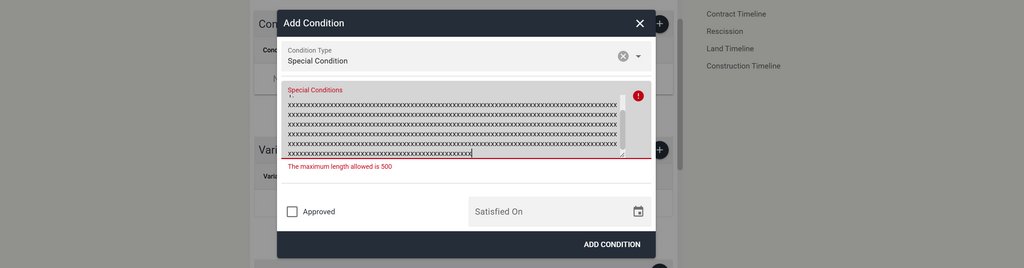
Contract Edit, Add Condition: the error shown when a Special Condition is over its 500-character limit.
Enquiry attribution tab
A contact's profile now has an Attribution tab. It shows the UTM data captured for each inbound enquiry, so you can see which campaign and source generated the new lead.
Find it: SalesCRM › Contacts › Contact › Attribution
- See the campaign, source and date for each enquiry.
- A number on the tab shows how many enquiries are tracked.
- Filter enquiries by project.
- Click an enquiry in the Interest tab to see where it came from.
- Export this data for all contacts from the Contacts page.

Contact, Interest tab: select the tracked enquiry link to go straight to its attribution.
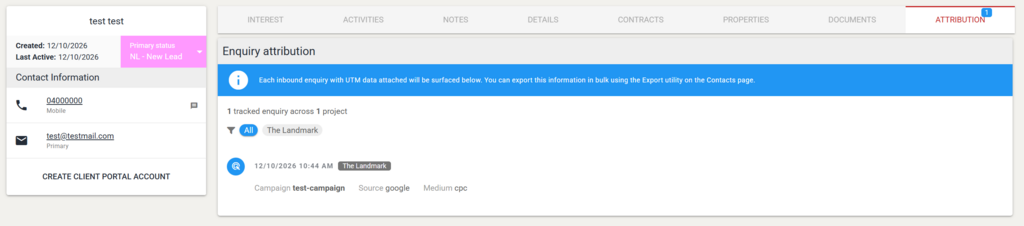
Contact, Attribution tab: each tracked enquiry with its campaign, source and medium.