 Brightfox Support
Appearance
Staff Members
Add a Staff Member
Log into Fox Admin (requires Administration role).
Navigate to Staff Members tab from the side menu.
Click the + Add Staff Member button at the bottom of screen.
Add all their relevant information and note the following:
- Make sure you tick Is Salesperson
A staff member must be marked as a salesperson if you wish them to be assigned listings or contacts - Make sure you enter their Email so they can create a password for authentication in Step 6.
Click Save to create this staff member.
To give this staff member the ability to create their account login credentials, click the Create Login Account button at bottom of screen.

- In this dialog, assign the appropriate Username and Security Role for this staff member.
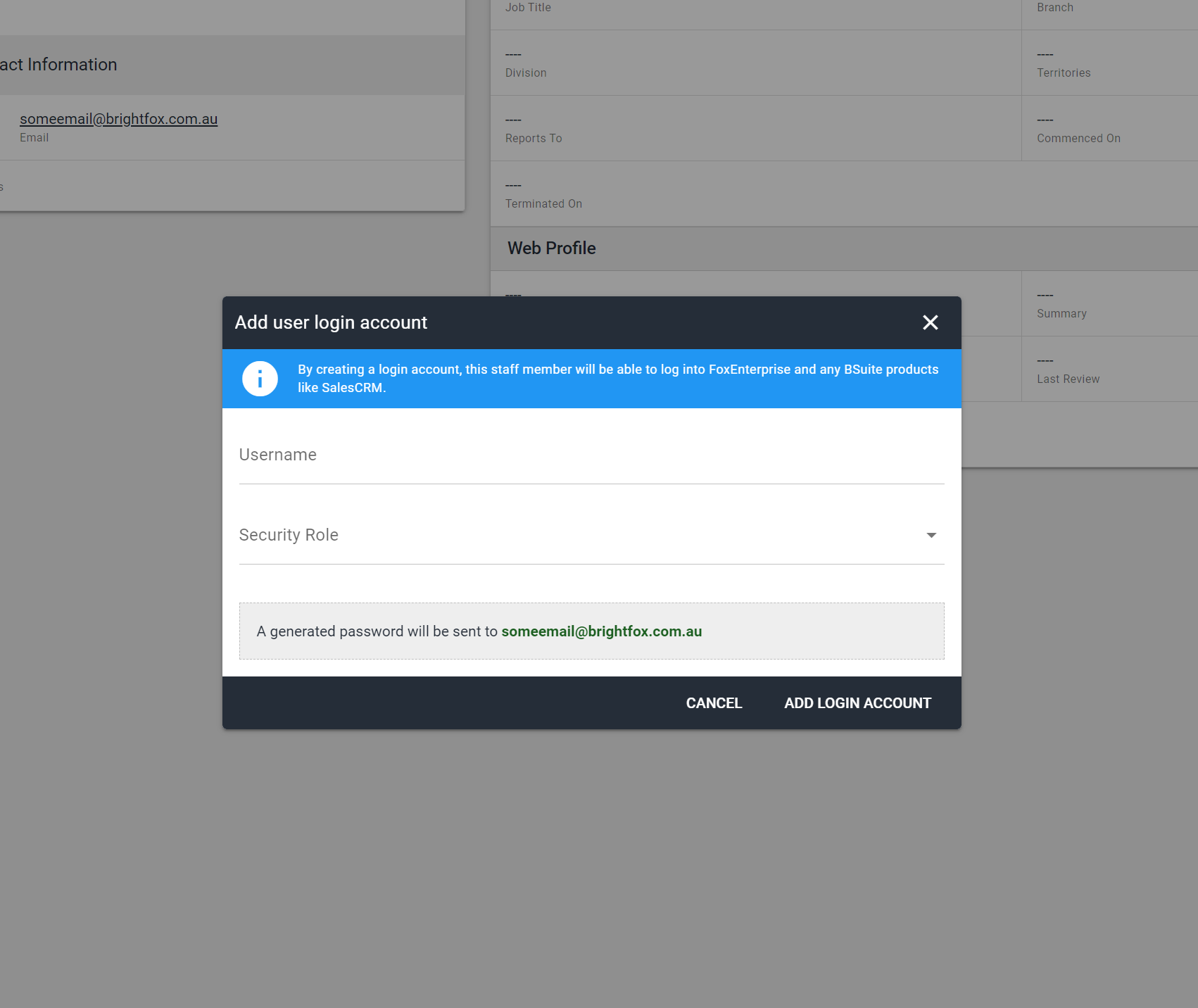
- Finalise by clicking the Add Login Account button. This will send an email to this user asking them to generate their own password for their login authentication.
Update a Staff Member
Log into Fox Admin (requires Administration role).
Click the Staff Members tab in the side menu.
Click on the staff member you want to edit the details of.
Click Edit at the bottom of the page.
Edit the required details.
Click Save.