 Brightfox Support
Appearance
Update User Profile
Update & Edit Your User Profile
Navigate across the toolbar at the top of the Dashboard view in SalesCRM
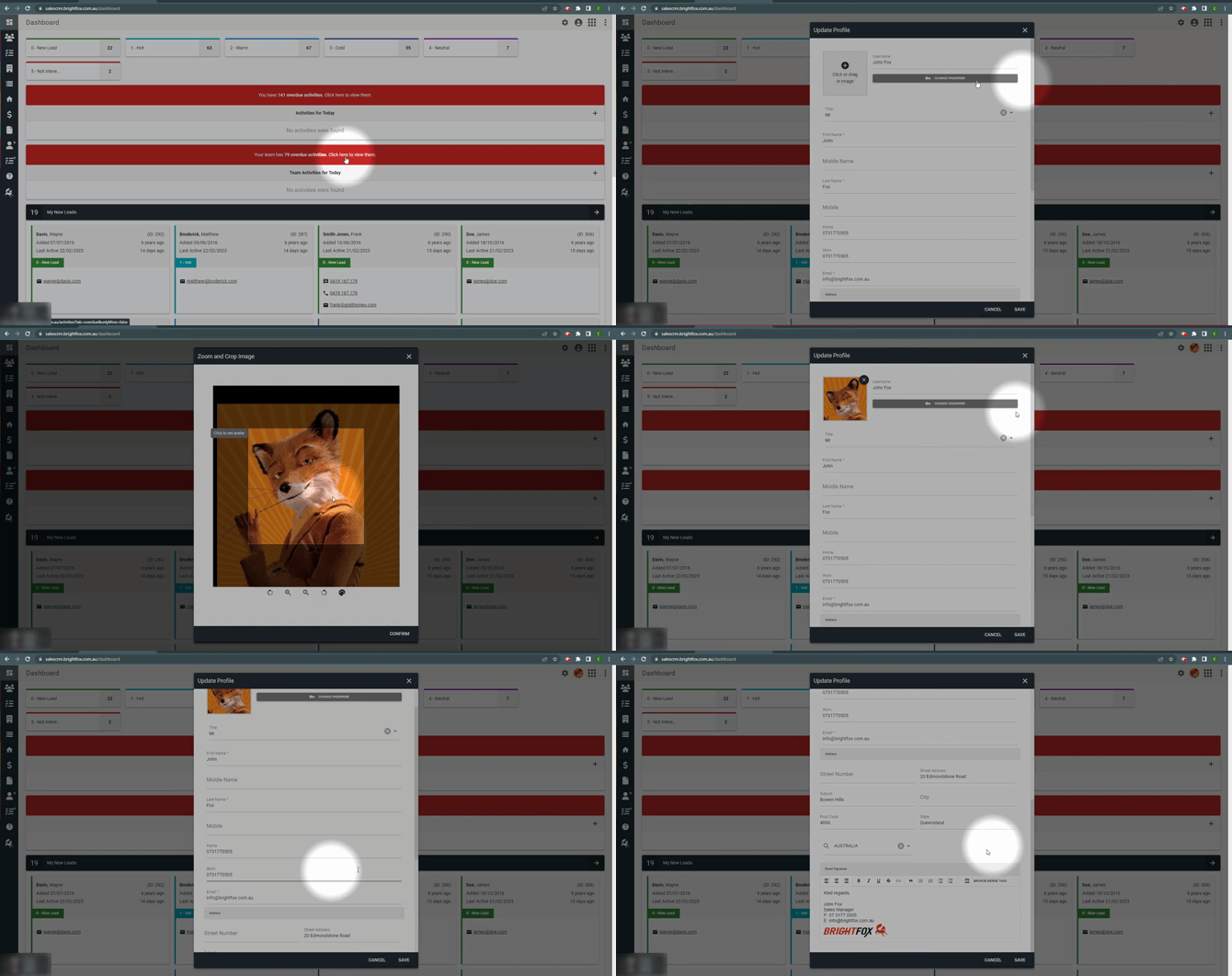
Click on the user profile icon and select, Edit Account
INFO
This will open the Update Profile window where users can change a password, upload a profile image, add their employee and contact details (name, phone number, email address, office location), and customize an email signature.
Change Password
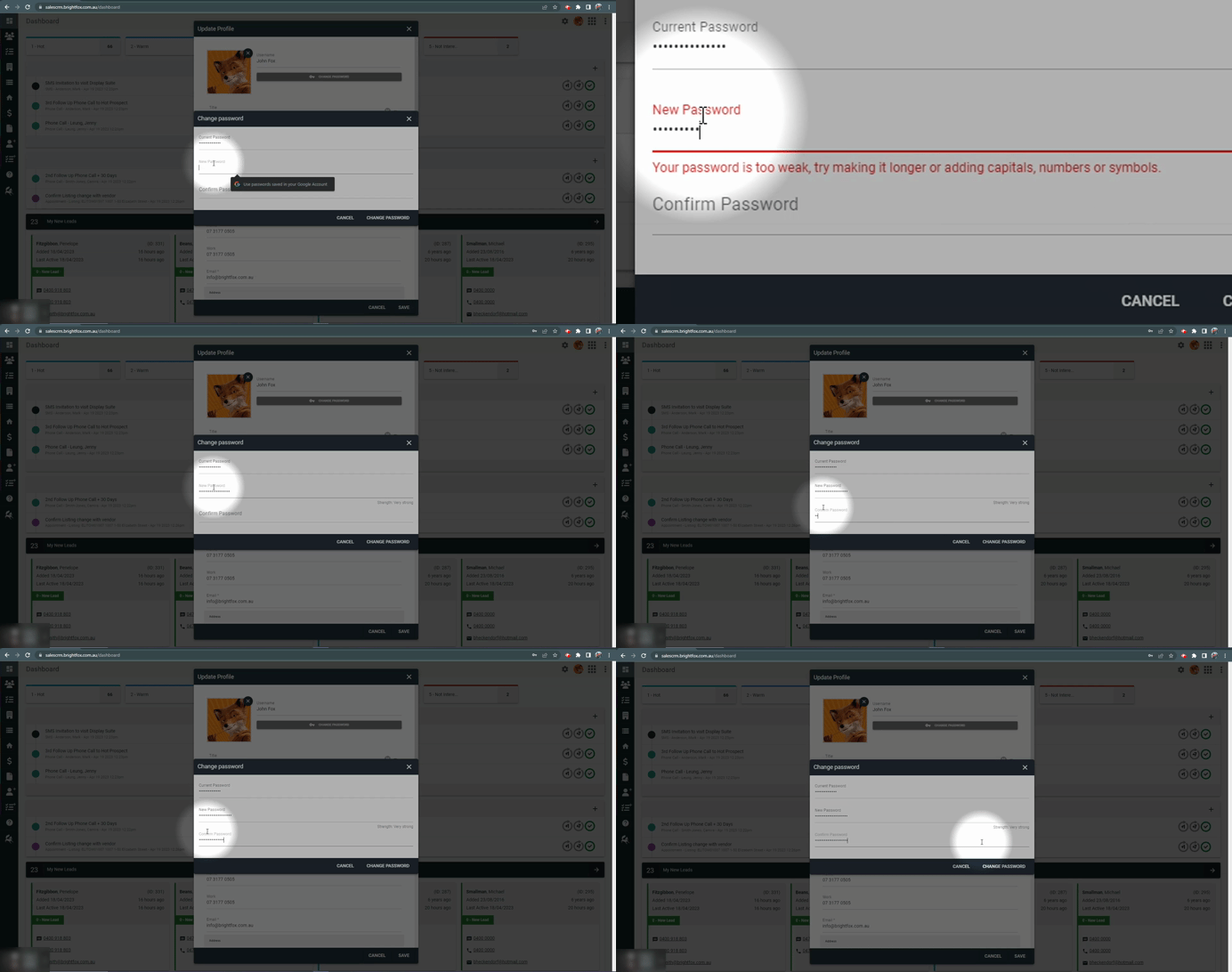
Click Change Password
Enter your current password
Choose a new password to enter
INFO
Be guided by the strength of your password by reviewing the system prompts that are checking how secure your chosen password is.
TIP
Choose a passphrase, rather than a password. We recommend that you include at least one number and a symbol ($#@!%&) for an extra strong password.
Confirm your new password by entering it again
When complete, press Save
The window will close and a successful save notification will appear in green to confirm that the changes have been made.
Change & Upload Profile Image
- Click or drag in a file to upload a user profile image.
WARNING
Acceptable file formats: jpg. jpeg. png.
- Change the background colour, rotate, zoom and crop your profile image in the Zoom and Crop window, select Confirm to save and continue.
Add & Edit User Details
- Use the dropdown menu to select a title, and enter your details by typing or pasting into the fields listed.
INFO
Mandatory fields include First Name, Last Name, and Email Address
Customize Email Signature
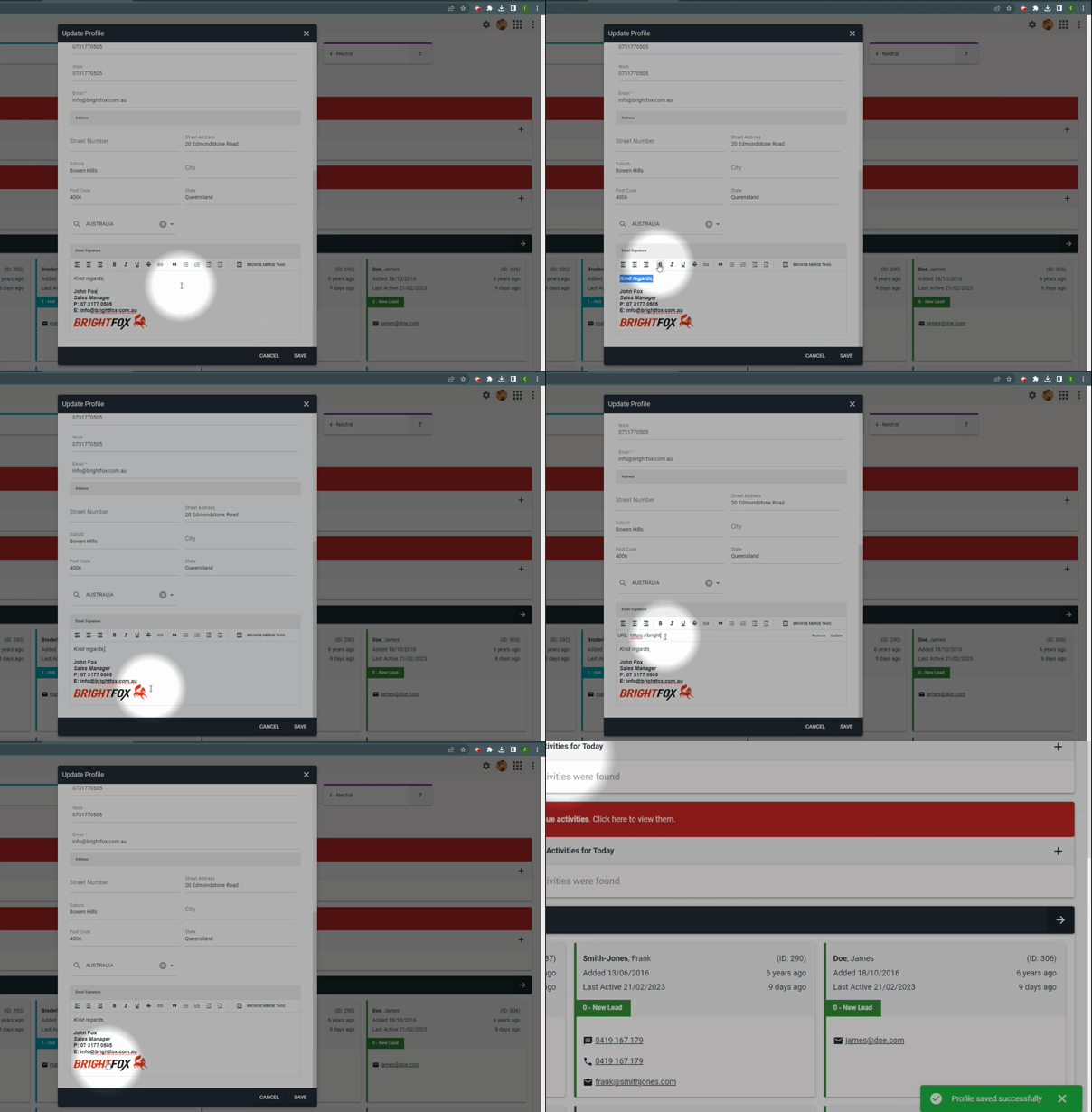
- Click into the Email Signature field, and enter your email signature details by typing or pasting.
TIP
Align and format the text by using text format features such as Bold “B”, Italics “I” , and Underline “U” Users can include different fonts, coloured text and images by copying and pasting them into the field. Link any of your details, including images, to websites by using the hyperlink feature.
- When complete, press Save. The window will close and a successful save notification will appear in green to confirm that the changes have been made.