 Brightfox Support
Appearance
Save as an App
*For this demonstration we are using the Safari browser on an iPhone.
Open SalesCRM in your browser
Enter and save your login details
INFO
You can login to the actual app for the next steps, however this example uses the login page.
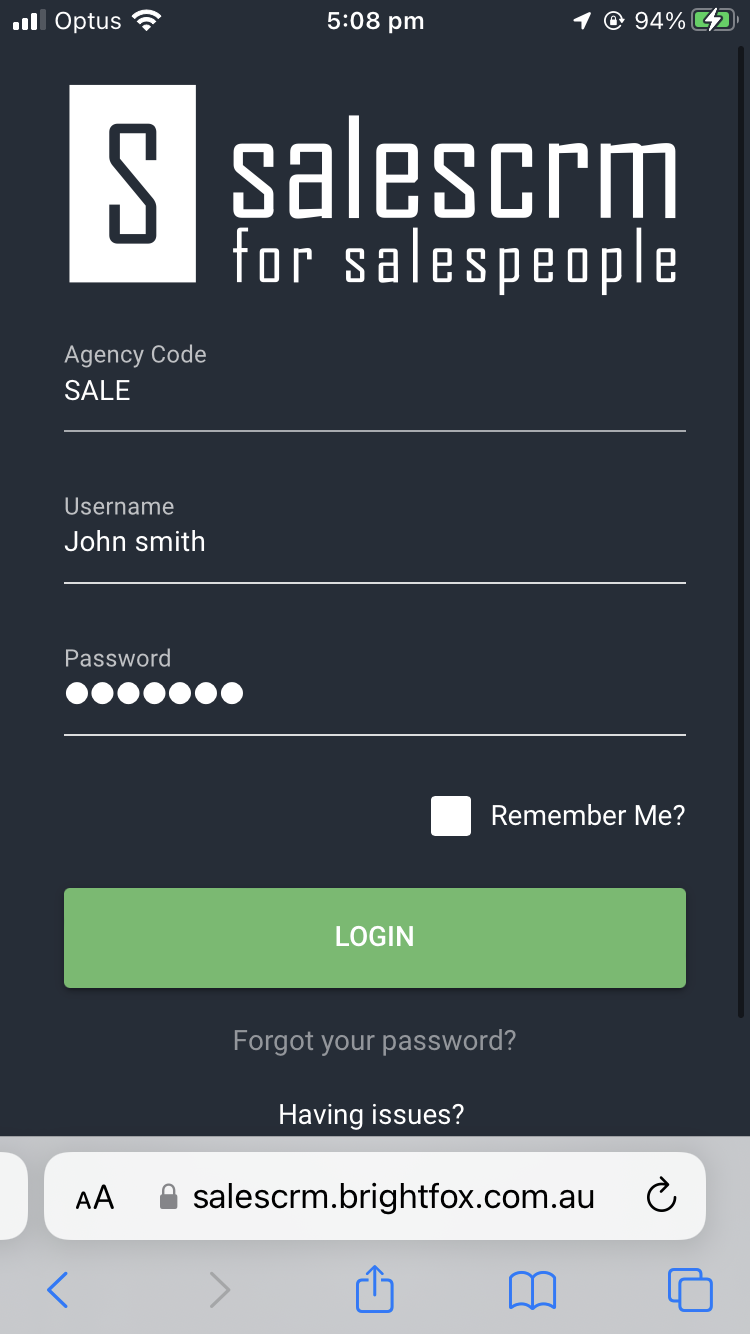
Click on the Push button at the top/bottom of your screen.
In the tab that opens, scroll down until you reach the action Add to Home Screen.
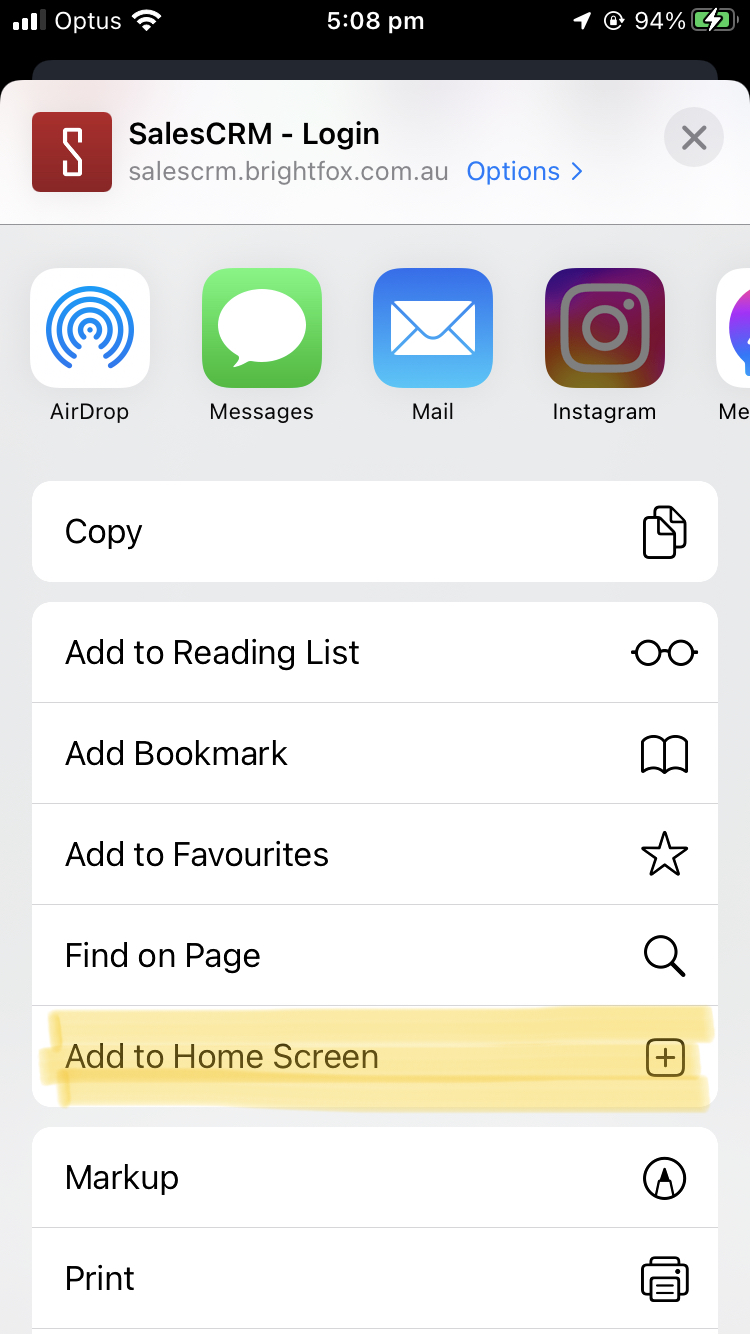
Click Add to Home Screen
Follow the system settings for adding an app to Home Screen.
TIP
In the Add to Home Screen dialog you can rename the app to something more familiar name if that helps.
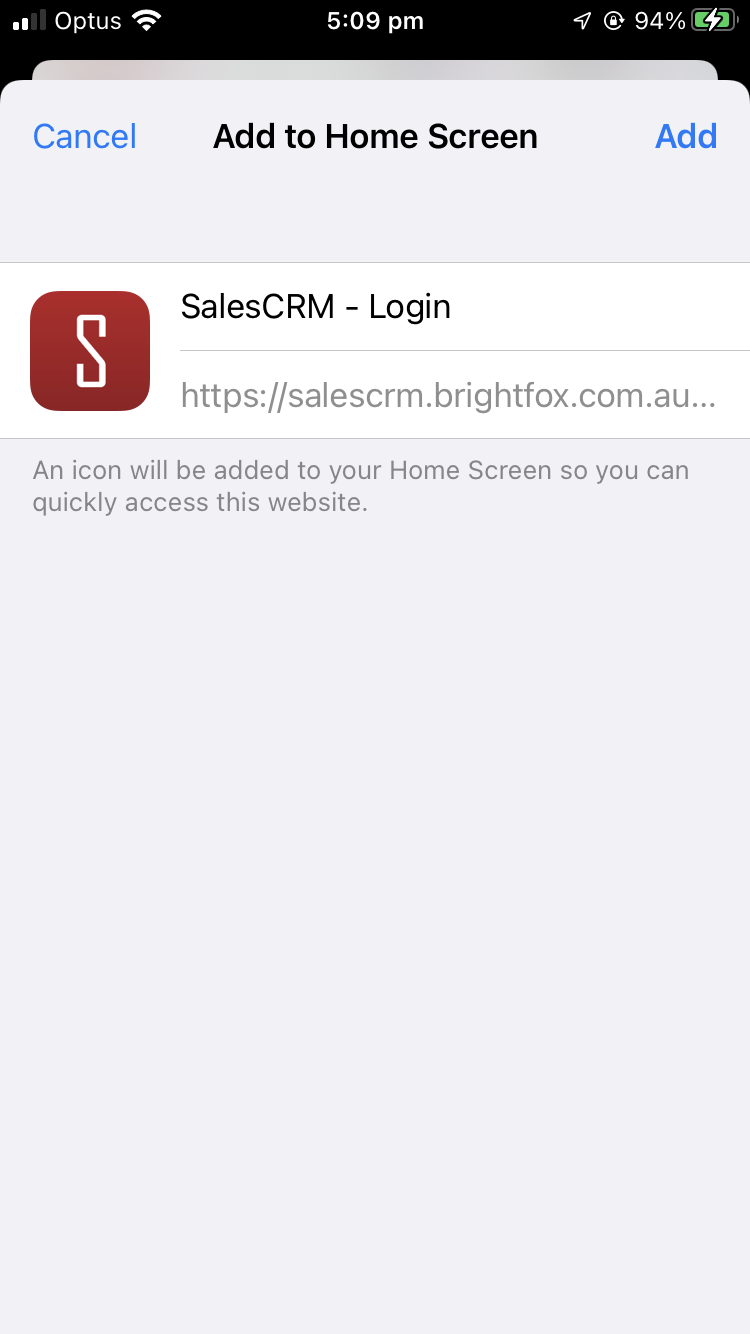
Click Add.
The SalesCRM app will now be located on your home screen. You will be able to drag and rearrange it like a regular app.