 Brightfox Support
Appearance
REA Integration with SalesCRM
The REA integration with SalesCRM captures your REA leads as contacts in your SalesCRM account. To set it up you must first contact Brightfox to enable this integration on your account. Once Brightfox has enabled REA on your account, follow these steps:
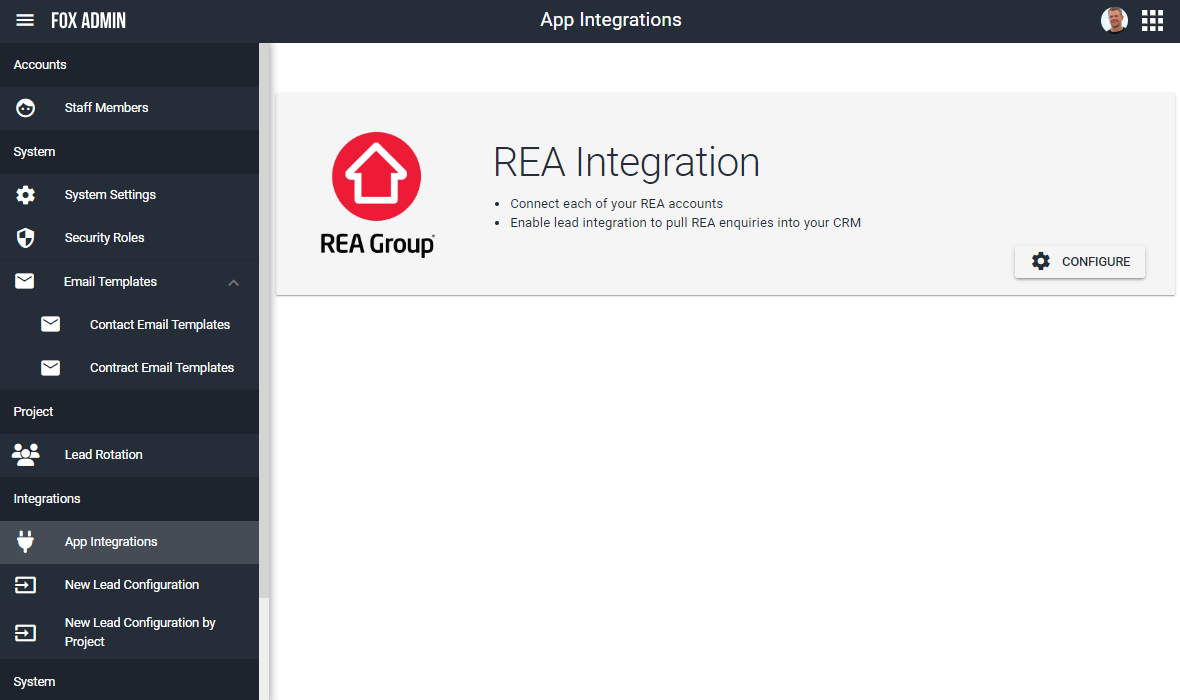
- Navigate to SalesCRM > Administration.
- Open the App Integrations page.
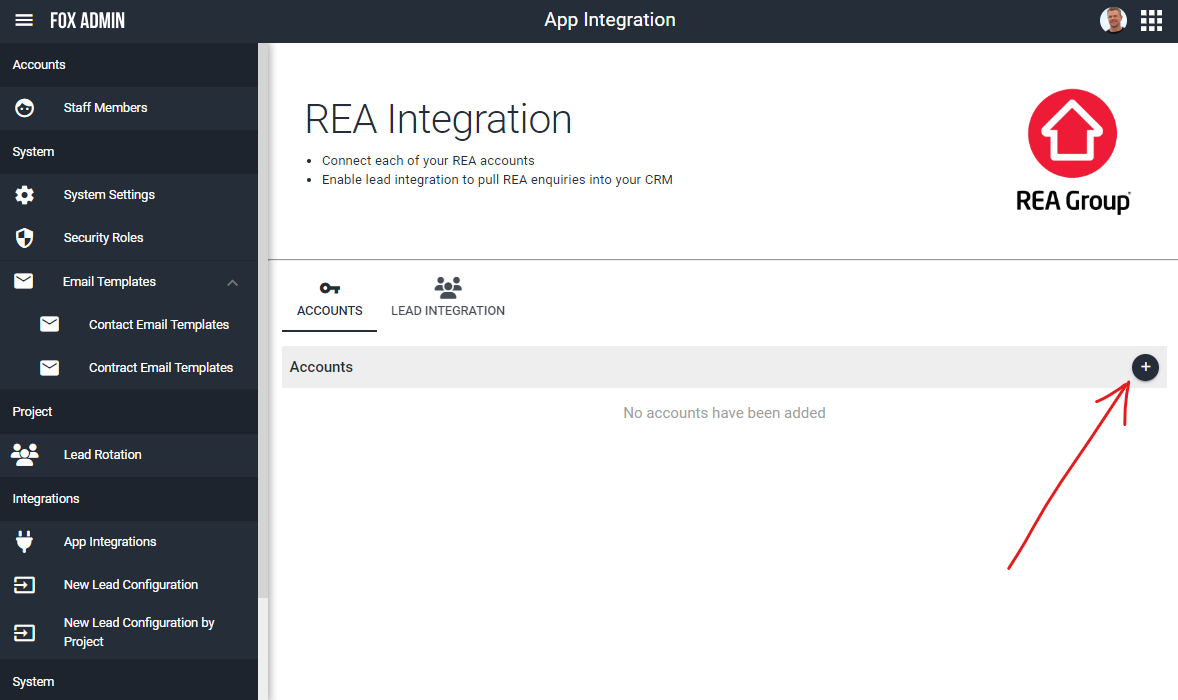
- To connect your REA account, click the + button.
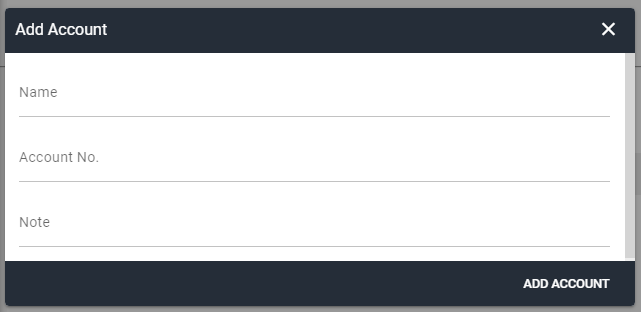
- Input the details as displayed in your REA account.
Contact REA to approve the integration with Brightfox.
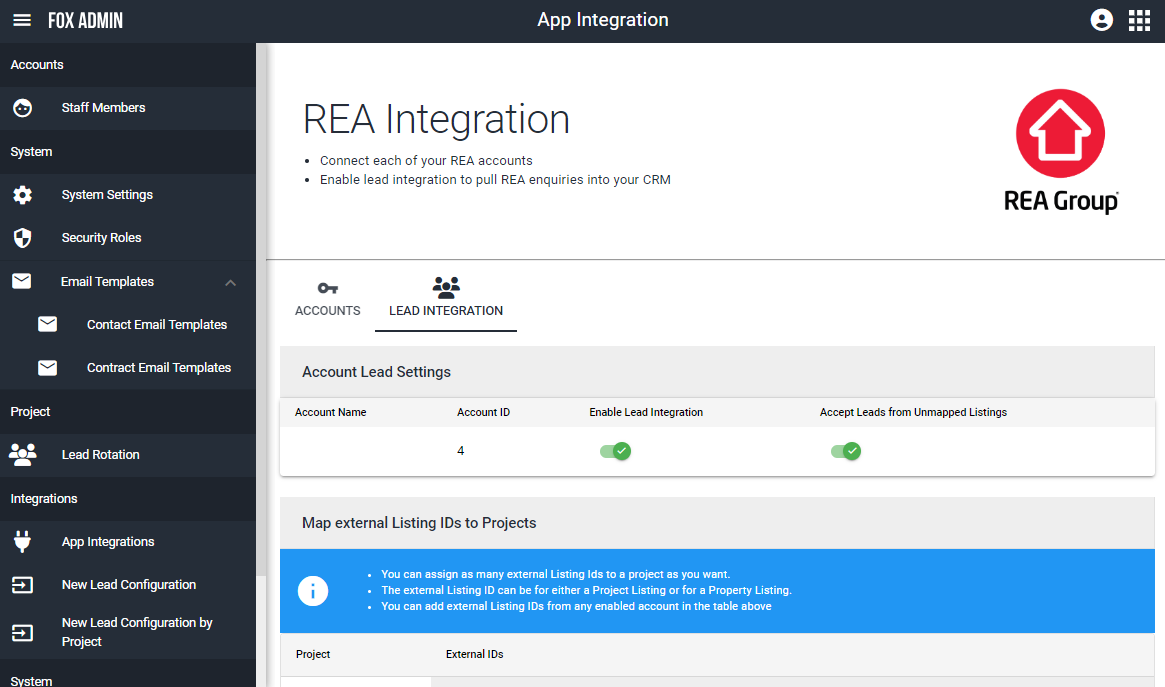
In the Lead Integration tab, you can map your REA Listing IDs to their respective Project in SalesCRM. This will ensure that your leads will be linked to the correct Project in SalesCRM.
Ensure Accept Leads from Unmapped Listings is toggled on. This will ensure that even if leads enquire on your REA listings but they aren’t mapped in these configurations, you will still receive these leads in SalesCRM but they won’t be linked to a project of interest.
- Navigate to the New Lead Configuration page to customise your REA integration configuration.
Configuration Guide
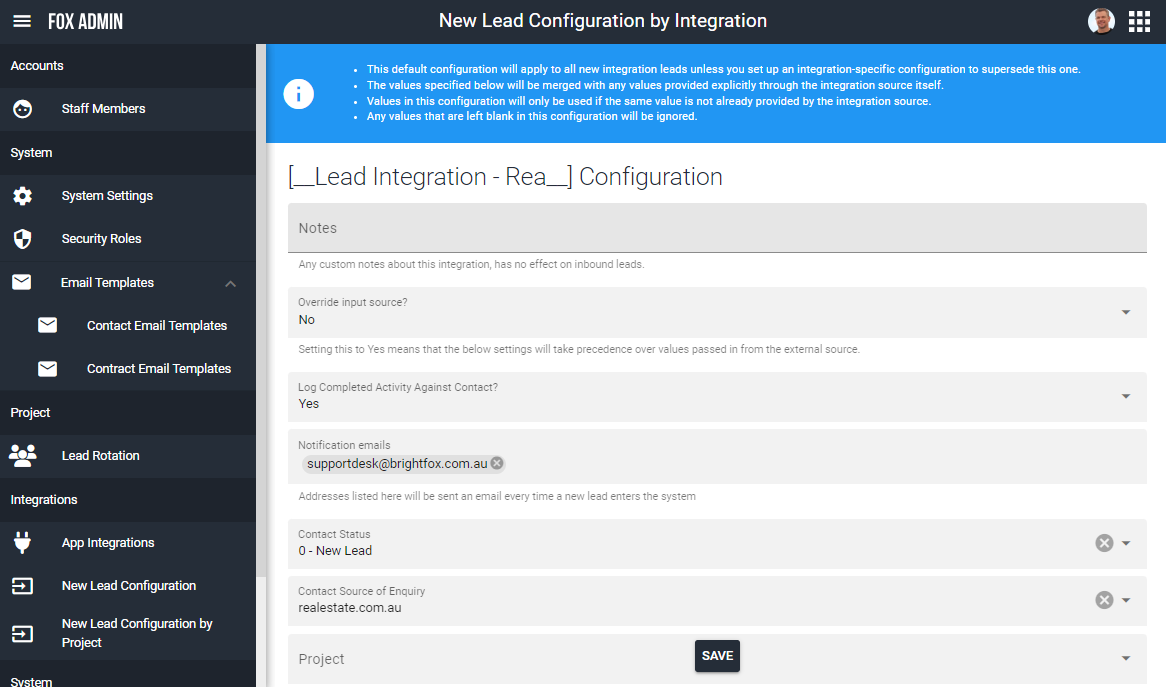
Override input source?
- No, your integration configuration should be treated as back-up.
Log Completed Activity Against Contact?
- Yes, this will create an Activity Log on your Contact’s profile with their enquiry submission.
Notification Emails
- Only add administrator email addresses here. Salesperson email addresses are to be specified on their staff profile. When a lead is assigned to them, they will get notified.
Contact Status
- New Lead
Contact Source of Enquiry
- REA (this may need to be added to your System Settings)
Project
- No need to specify for this integration
Contact Enquiry Type
- Website
Contact Category
- Prospect
Contact Subscriptions
- Not necessary
Salesperson
- This will be your back-up salesperson. If you have designated salespeople configured in your New Lead Configuration by Project, then they will take precedence if you have set it to override these settings.
Apply Lead Rotation?
- Set this to yes if you want to share your leads across multiple salespeople (ensure Lead Rotation is enabled in the relative Project configuration via New Lead Configuration by Project. Then configure the Lead Rotation via Lead Rotation).
Apply Duplicate Checking?
- This is recommended to ensure you don’t have duplicate contacts in your system. When turned on, your existing contacts will be merged with any new enquiries they make (depending on the Duplicate Checking rules you set. The predefined ones are recommended).