Brightfox Support
Appearance
Price List
Overview
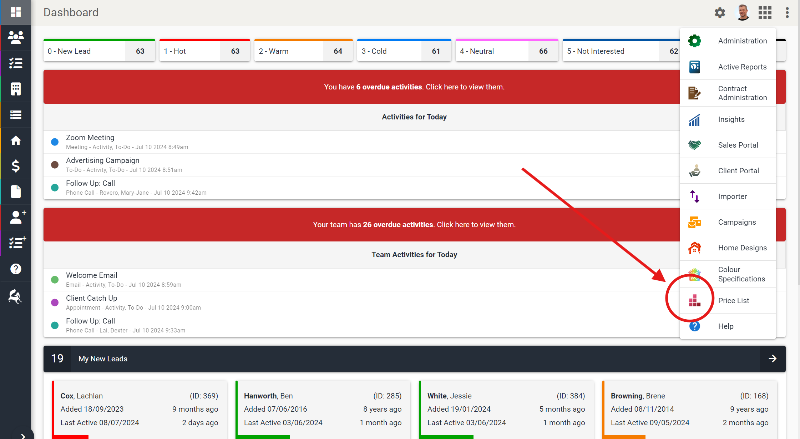
You can manage and report on your projects with the Price List module. This powerful tool allows you to view your project listings as an informative and printable Building Stack report. To access this module, navigate to the module drop-down at the top-right of your screen.
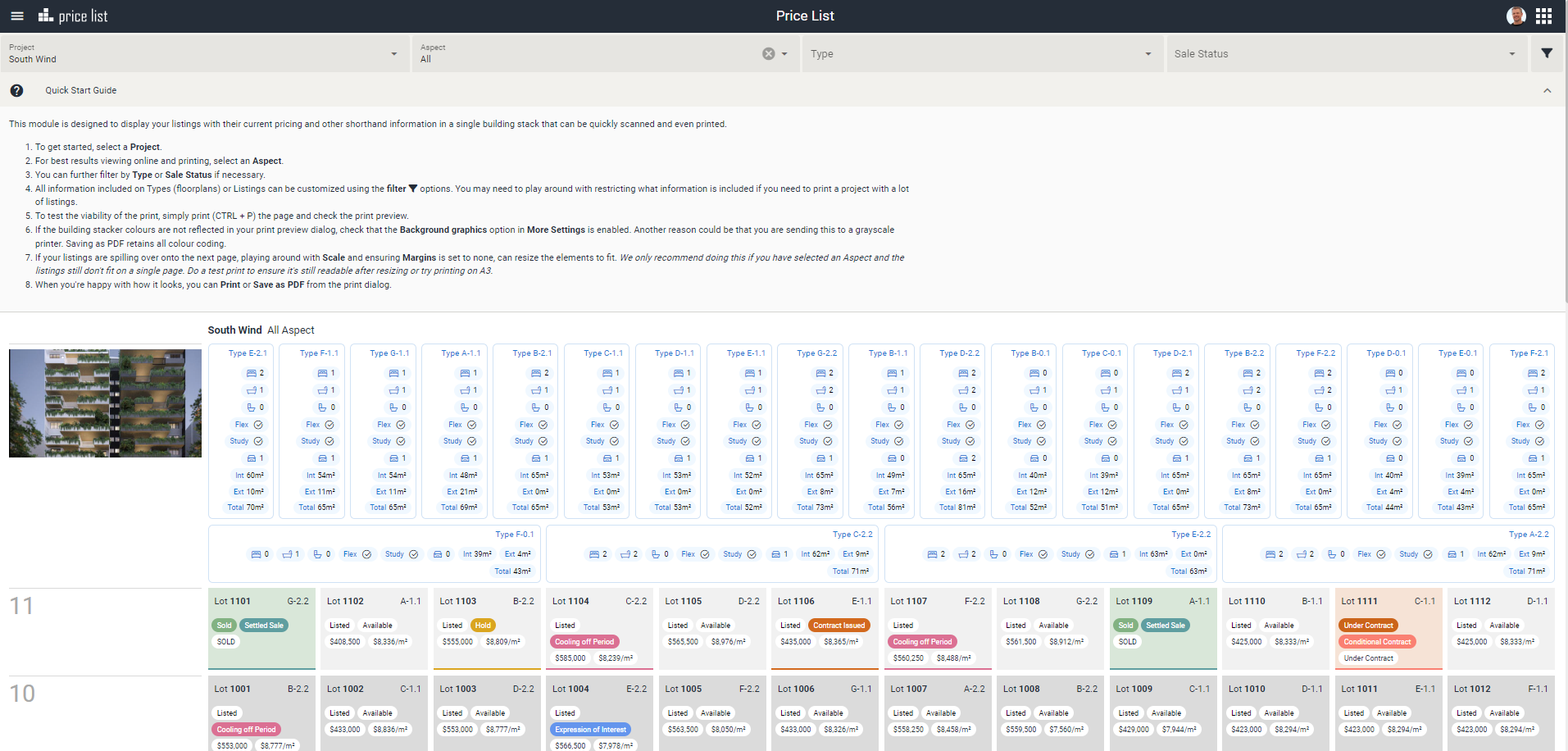
As you can see below, you will be met with a toggleable Quick Start Guide that includes basic instructions for using this module.
To get started, select a Project and an Aspect to view from the toolbar.
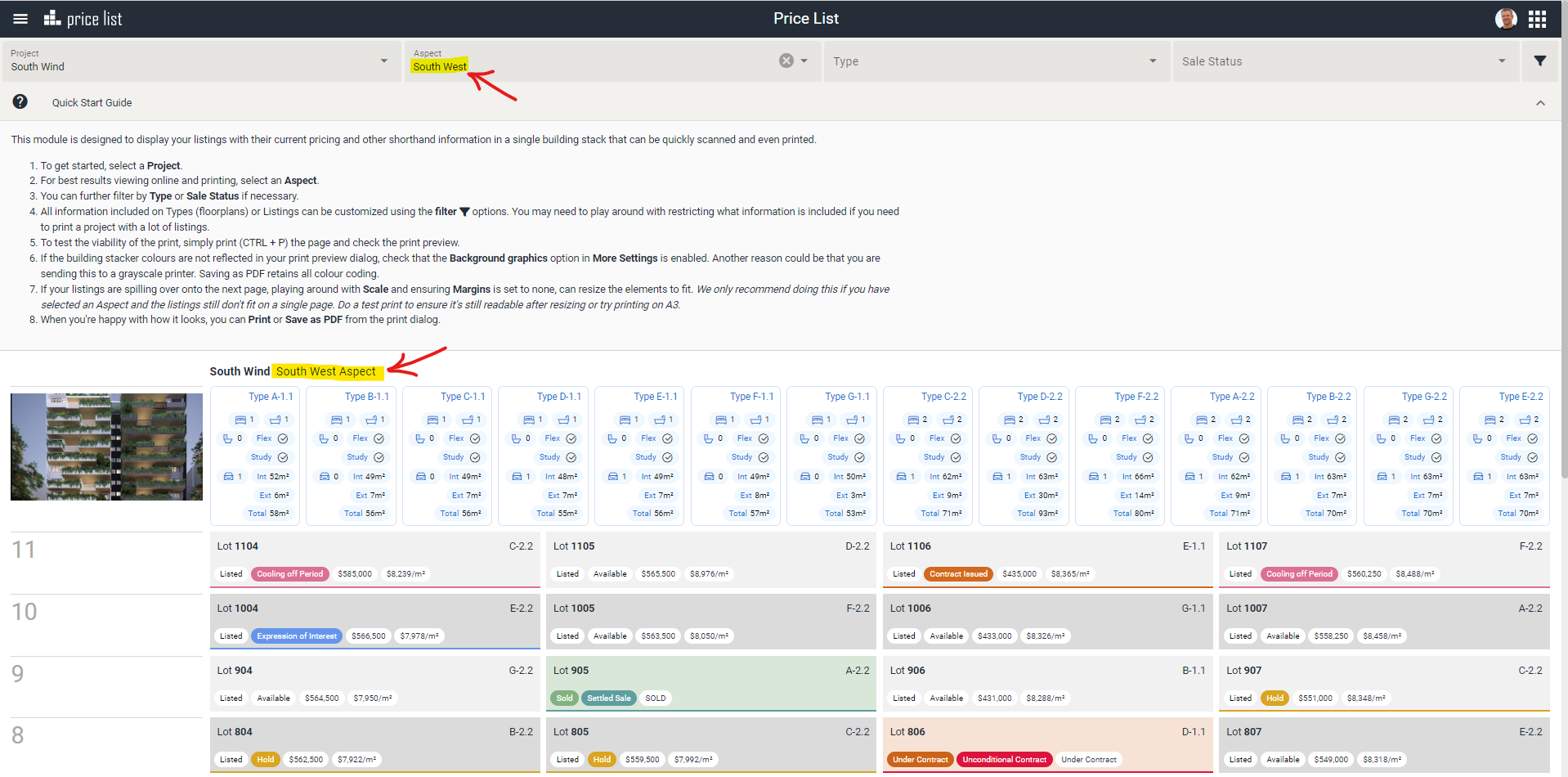
TIP
Although you have the option to view All aspects of a project, we do not recommend it. This module was designed to best display and especially print a single aspect, from how listings and floorplan types are fit across into building levels to the sizing of all the information this document communicates.
Display Option Filters
The Price List feature includes a host of filters to customise your view and reporting, such as contract status, aspect, and floor plan type. Clicking on the filter icon on the right side of the toolbar will open a dialogue that allows you to toggle these filters on and off.
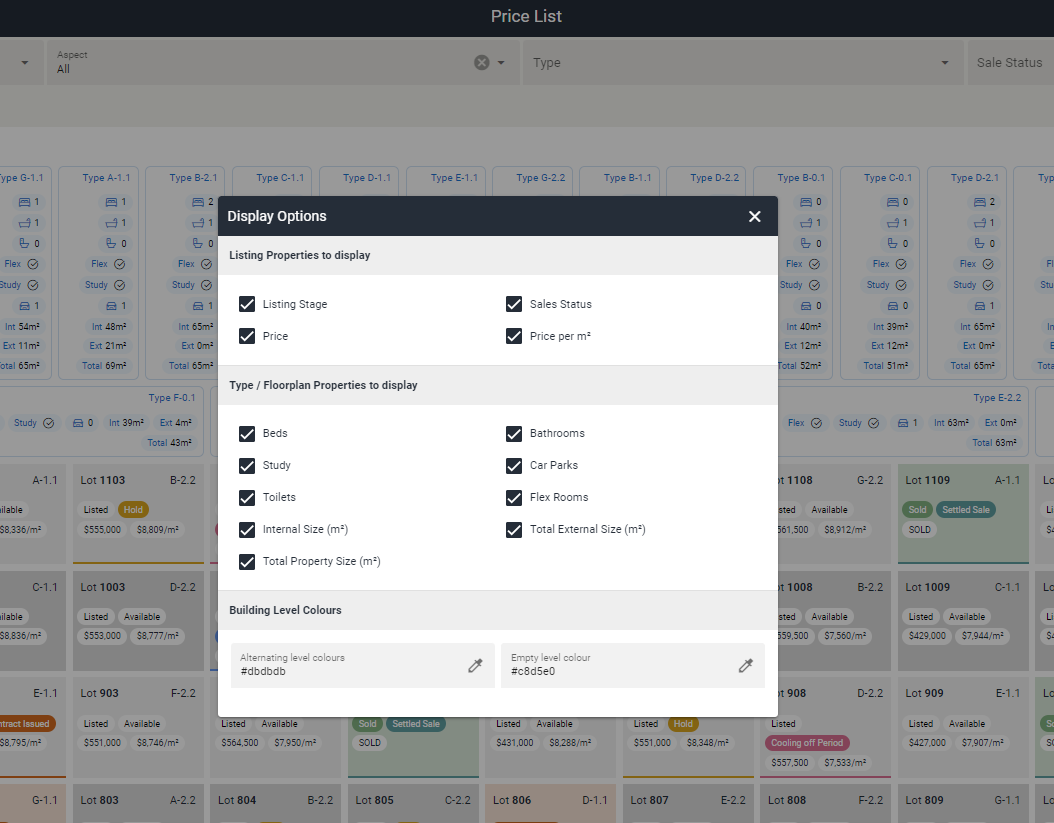
Listing Properties to Display
These filters determine what bubbles of information you can see on your listings, which are the grey rectangles, always marked with their Lot Number (top left corner) and Floorplan Type (top right corner).
INFO
Toggleable options include:
- Listing Stage
- Sales Status
- Price
- Price per metre
Type / Floorplan Properties to Display
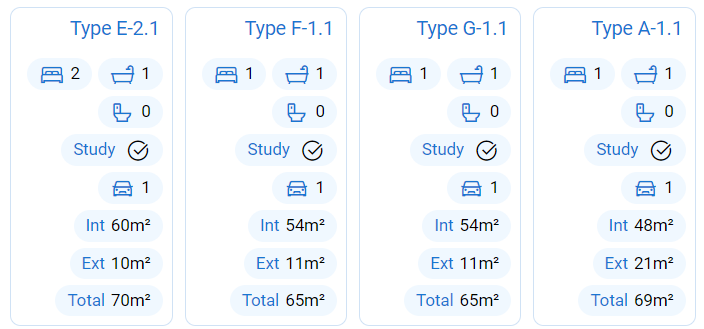
These filters determine what blue bubbles of information are displayed on each Type / Floorplan.
INFO
Toggleable options include:
- Number of Bedrooms
- Number of Bathrooms
- If has a Study
- Number of Carparks
- Number of Toilets
- If has any multi-purpose rooms (aka 'Flex Rooms')
- Total internal size in metres squared
- Total external size in metres squared
- Total property size in metres squared
Building Level Colours
From the filters dialogue, you can choose colours to best suit your company or project branding.
Alternating Level colours
The alternating level colours is a singular HEX value that determines the colour of the listings in your building levels. By default, the Price List uses a grey shade for all your projects. Notice that every second building level has listings of a lighter shade? That's because the selected HEX value is shown at 50% opacity every second level.
TIP
Lighter, more neutral colours work best.
Empty Level Colour
This is the colour that is given to any empty levels in your building, which is often the case with ground or basement levels. By default, we use a neutral shade of blue that compliments the information in types.
Printing
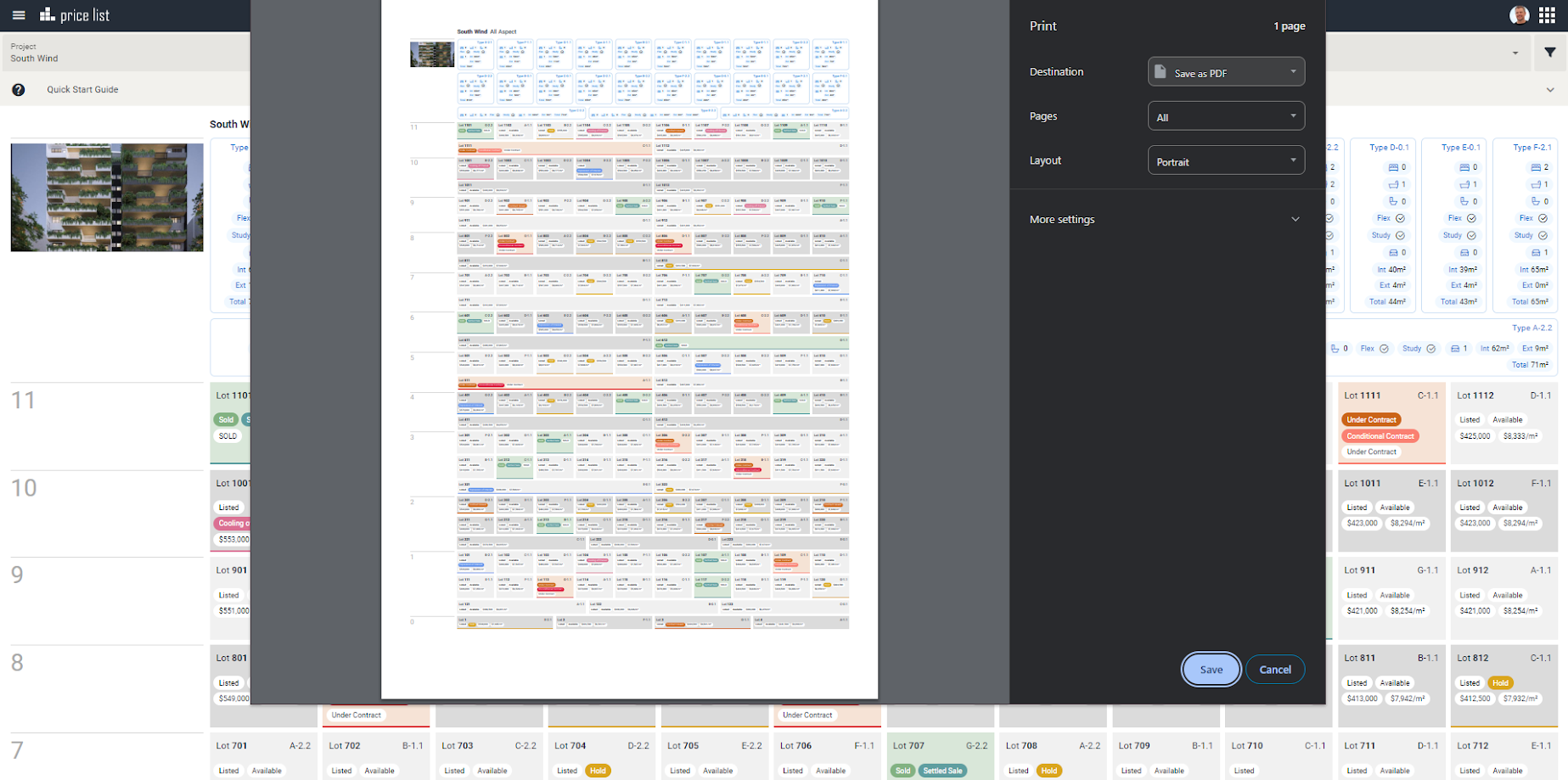
To ensure your Price List prints perfectly, you can customise the settings in the Print dialogue (ctrl+P).
- Remove all margins
- You can adjust the scalability until listings fit just right
- Toggle Headers and Footers to show or remove any additional print text
- Ensure Background Graphics is turned on so you can see your colour theme and contract status colours
WARNING
If you are printing to a greyscale printer, the preview will be completely grey.
TIP
Saving as a PDF, will showcase colours